
Signer vs copy recipient: who needs to act and who needs the finished PDF?
Map signers and copy recipients with a role table, a two-signer agency example and a delivery test that separates signatures from completed-copy handoffs.

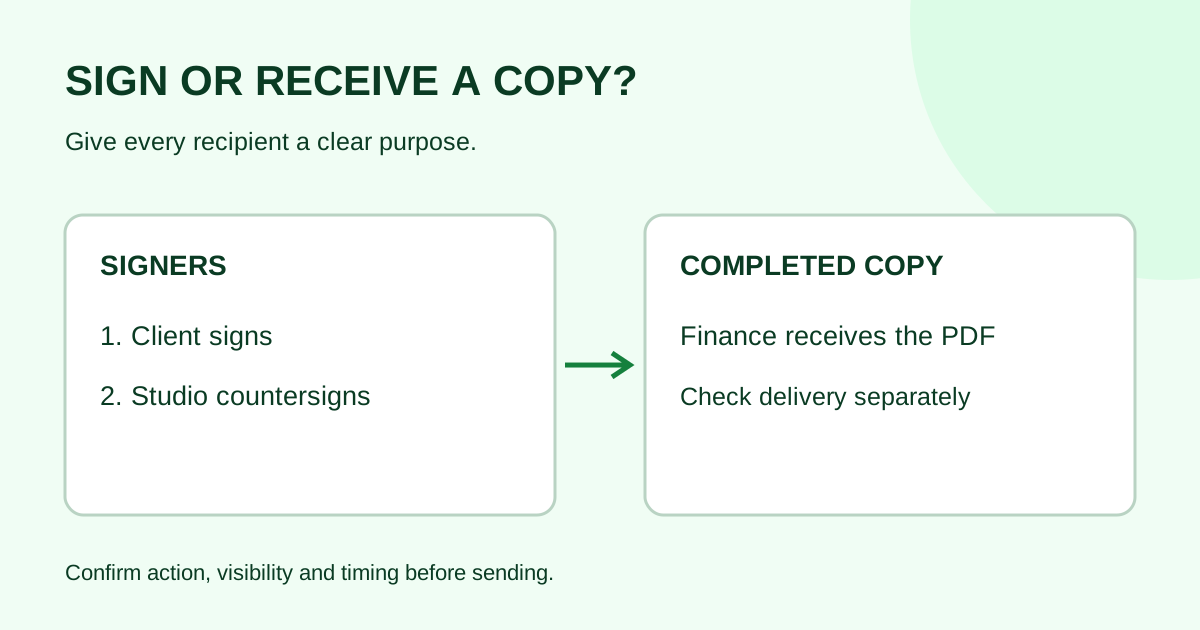
A signer needs to complete an assigned signing action. A copy recipient needs to receive a document or update without being asked to sign. Before adding someone to a request, write down what they must do, what they may see and when they need the copy. Do not add a signature field merely to keep someone informed.
This guide helps small agencies and service teams plan recipient roles. It is an operational checklist, not advice about who has authority to enter an agreement.
Choose the action before the role label
Providers use different recipient names and delivery settings. Treat “CC,” “receives a copy” and similar labels as options to inspect, rather than promises about delivery timing or access.
| Person’s actual task | Role to look for | Check before sending |
|---|---|---|
| Sign the approved document | Signer | Correct person, email, assigned fields and required signing order |
| Receive the completed record for filing | Copy recipient, if supported | Delivery after completion, document visibility and correct destination |
| Review wording before anyone signs | Your team’s review process; a provider review role only if documented | Review happens before the approved version goes out; a copy notification is not an approval step |
| Monitor progress internally | Supported sender/team access or an internal status register | Account permissions and who owns follow-up; do not share a sender login |
| Replace the intended signer | Supported recipient-change process | Sender confirms the person and updates the recipient record; forwarding a private link is not a role change |
Once you know who signs, choose the signing order. Then use a recipient field map so each signature blank belongs to the intended signer.
Receiving a copy does not mean approving the document
An accounts contact may need the completed SOW to set up a project record. That does not automatically make them a signer or a reviewer. If they must check billing details before signing starts, arrange that review before sending the approved PDF.
A concrete vendor example illustrates why timing matters. In Docusign’s document-visibility example, two signers see different documents, while a carbon-copy recipient receives all three signed documents after both signers finish. That is the configuration in this example, not a universal rule for every copy recipient or provider.
The example was checked October 18, 2026. It does not establish that Demand Signatures has a copy-recipient role, per-document visibility controls or the same delivery timing. Check the tool you are actually using before relying on those controls.
Build a recipient worksheet
Use one row per person or approved destination. Keep the worksheet in your normal controlled project workspace; do not put private signing links in it.
| Worksheet column | What to record |
|---|---|
| Recipient | Person or approved filing destination, with checked email |
| Purpose | Sign, review beforehand, receive the completed copy or follow up |
| Document visibility | Which files this recipient should receive |
| Timing | Before sending, during signing or after confirmed completion |
| Provider setup | Actual role and delivery setting, or “not supported” |
| Verification owner | Who will check that the intended action happened |
If the provider cannot deliver the required completion copy automatically, name an owner to retrieve and share it through your team’s approved method after completion. Confirm the destination is appropriate for the document. Do not substitute an extra signer to work around a missing delivery feature.
Worked example: two signers and a finance copy
This fictional agency example describes a planning method, not Demand Signatures functionality.
A studio prepares an approved website-support SOW. The client contact signs first, the studio owner countersigns, and the client’s finance contact needs the finished SOW for their records. Finance does not need to sign or review this request.
| Recipient | Needed action | Planned timing | Verification |
|---|---|---|---|
| Client contact | Sign the client fields | First | Sender checks the client action in the request |
| Studio owner | Countersign the studio fields | After client | Sender checks whole-request completion |
| Client finance contact | Receive the completed SOW | After both signatures | Project owner checks delivery of the finished copy |
The sender checks whether the chosen provider supports a completion-copy recipient and the required timing. If it does, they configure finance for that purpose and preview visibility. If it does not, the project owner records a manual completed-copy handoff. Finance receives no signature field in either route.
Now change one fact: finance must approve the billing schedule first. The studio pauses preparation and gets that review completed before sending the final SOW. Adding finance as a copy recipient would not satisfy the new review requirement.
Test delivery separately from signing
Run a synthetic signing test with addresses you control and a sample document before relying on an unfamiliar role setting. Use no customer information.
- Configure the signer and copy roles exactly as planned, if supported.
- Check which message each test recipient receives and at what stage.
- Verify that only the intended signer is asked to complete signing fields.
- Finish all signing actions and confirm the whole request is complete.
- Open the copy recipient’s delivered record and check that it is the intended completed document.
- Record any missing delivery and its follow-up owner before a real send.
A successful signer submission does not prove that the copy recipient received the final file. Check both outcomes. File the finished record using the completed-document register.
Common questions
Can I put the finance mailbox in the signer list just to get a copy?
Use a supported copy role or a separate approved completed-file handoff. Adding a signer can create an unintended action requirement and confuse who still needs to respond.
Will a copy recipient see every attachment?
Inspect the provider’s visibility settings and test them. The Docusign example above gives its copy recipient all three documents even though each signer has a narrower view. Do not infer visibility from the role name alone.
Does a copy recipient get the file immediately?
That depends on the provider and configuration. Record the needed timing, check the documented setting and verify it with a test. If someone needs a pre-send review, arrange that explicitly.
What if the recipient address is wrong?
Check the request state and use the wrong-email correction checklist. Do not forward a private signing invitation as a substitute for correcting the intended recipient.
Prepare the next request
Confirm the action, visibility and timing for each recipient before placing fields. Review Demand Signatures features, or upload a document in Demand Signatures to prepare your next request; sign-in is required. Verify any needed copy-delivery capability before choosing your workflow.
Comments
Questions and notes from readers. Every comment is reviewed before it appears.
Comments are unavailable right now. Please try again later.
Leave a comment