
Send multiple PDFs for signature: together or separately?
Prepare several PDFs for signature with a together-or-separate decision table, a six-page package map and checks for document order, recipients and fields.

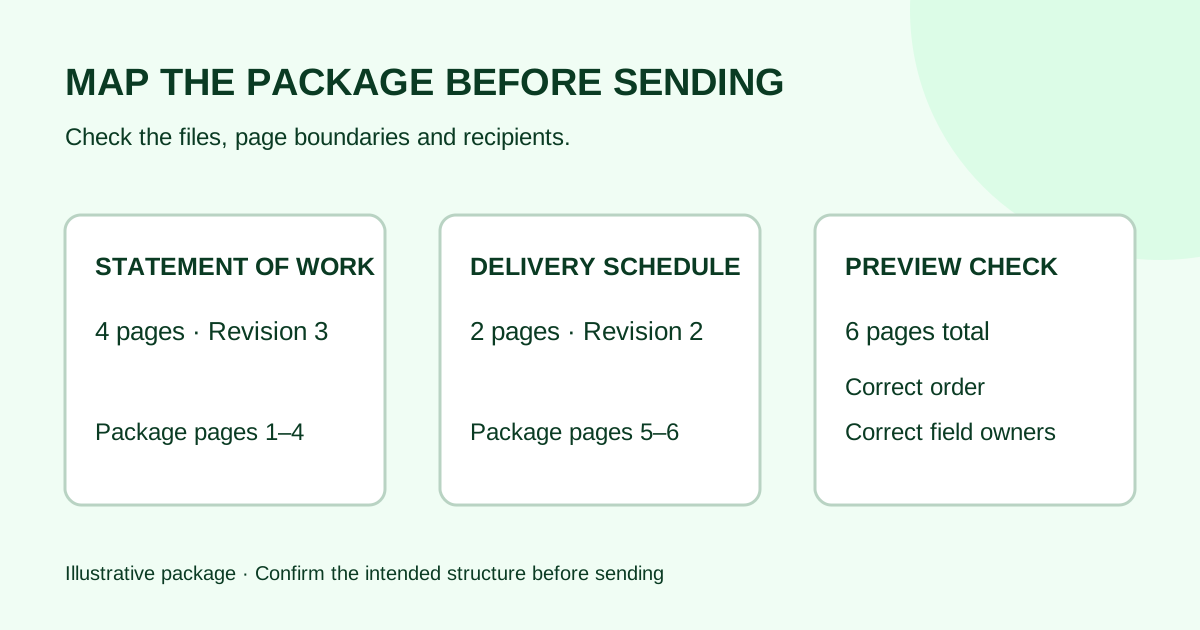
Before sending several PDFs for signature, decide which documents belong in the same request, who should see each one, and where each approved signing field belongs. Make a package map before uploading. A set of files in one folder is not yet a checked signing package.
For an agency sending a statement of work with a schedule, the practical question is whether the files share recipients, timing and a final approved version. This guide gives you a decision table and a worked six-page map. It covers document preparation, not the legal effect of combining agreements.
Send together or separately?
Use this table as an operational check. Confirm the intended document structure with the document owner before changing how approved documents are presented.
| Situation | Preparation decision | Check before sending |
|---|---|---|
| Same recipients, same deadline, all files approved | Consider one package if your service supports the intended arrangement | Every recipient may see every included page; preview the result |
| Different recipients or access needs | Plan separate requests unless you have verified suitable document visibility controls | Assigning a field does not establish who can read a document |
| One file is still under revision | Hold the affected package or ask the owner whether approved documents can proceed independently | Do not quietly include a draft alongside final files |
| Documents have different signing deadlines | Consider separately tracked requests | Give each request a clear title and owner |
| A schedule is background information only | Confirm how the owner wants it provided | Do not add a signature requirement just because a file is included |
“One package” can mean different things in different tools. Adobe’s Acrobat web instructions say that multiple uploaded documents are combined into a single PDF in the field-authoring step. That is an Adobe workflow, not a claim about Demand Signatures. Check your chosen service’s preview, recipient access and download behavior before using it for a real client package.
If you are comparing billing units, file count and request count are separate questions. The envelope-versus-document guide explains that distinction for Docusign.
Build a package map
List each source file, its revision, page count, intended readers and required actions. Use filenames that make the revision easy to distinguish, but open the files to confirm their contents. A filename ending in “final” is not a review result.
A useful map has six columns:
- Document: the approved title and source filename.
- Revision: the version the document owner approved.
- Pages: the expected count and, if combined, its position in the package.
- Readers: everyone who may receive those pages.
- Fields: the approved blanks and the person responsible for each.
- Disposition: include, provide separately or hold for clarification.
Keep your internal preparation notes out of the recipient-facing files. If a colleague cannot tell from the map what should be included, resolve that ambiguity before opening the send screen.
Worked example: a six-page agency package
This fictional example assumes the document owner has already approved the statement of work and its accompanying schedule. Both named signers may see all six pages. The owner has confirmed that the schedule is included for reference and has no separate signing fields.
| Source | Revision | Source pages | Combined positions | Action |
|---|---|---|---|---|
| Website statement of work | 3 | 1–4 | 1–4 | Client signature and agency countersignature on page 4 |
| Delivery schedule | 2 | 1–2 | 5–6 | Read alongside the SOW; no additional fields |
The sender expects 4 + 2 = 6 pages. In the preview, package page 5 must be the first page of delivery schedule revision 2. Package page 6 must be its final page. These boundary checks catch a missing attachment, duplicate page or outdated schedule before the invitation goes out.
Now imagine the sender places the two-page schedule first. The SOW’s signature page moves from package page 4 to package page 6. A field layout copied from the earlier arrangement may point at the wrong page. Recheck field locations after any change to file order or page count; do not rely on the original source page number alone.
For each signature field, confirm both its location and its assigned recipient. The recipient field-map guide provides a separate worksheet for that check. If the client must act before the agency, also confirm the signing order.
A seven-point preview check
- Open every source file. Confirm the actual revision, readable text and complete pages.
- Check the intended readers. Remove nothing from an approved agreement on your own; route access conflicts to its owner before sending.
- Verify the resulting order. Compare the preview with the package map, including the first and last page of each source document.
- Reconcile the page count. Explain any difference between the source total and the preview rather than assuming the service handled it correctly.
- Place and inspect fields. Confirm the correct recipient, page and approved blank after the package order is settled.
- Read the invitation. Name the documents and explain the next action without implying that an unsigned attachment requires a new signature.
- Check the final review screen. Confirm the recipient list and package title before sending once.
If your tool accepts only one PDF, prepare an approved combined source using an appropriate PDF tool, then inspect that new file before upload. Do not assume the upload screen will merge files for you. Keep the original source files so the preparation can be checked later.
An invitation that describes the package
For the fictional example above:
Please review the website statement of work, revision 3, and delivery schedule, revision 2. The package contains six pages. Your signature field is on the statement of work; the schedule is included for reference. If a page is missing or the schedule differs from what we discussed, please contact me before completing the request.
Use that wording only when it matches the approved documents and actual field setup. For a broader set of messages, see the signature request email examples.
After sending, record the request reference next to the package map. After completion, check that the downloaded records contain the expected documents and pages. Preserve the original exports and use the completed-document filing checklist to make them retrievable.
Common questions
Does every PDF need a signature field?
Follow the approved document instructions. A reference schedule may have no signing field, while a separate agreement may have its own. Inclusion in a package does not tell you which blanks need completing; ask the document owner if that is unclear.
Can different signers receive different documents in one request?
That depends on the service and its configured visibility controls. Do not infer document privacy from field assignment. If you cannot verify the intended access, resolve the routing before sending or use separately approved requests.
Should I combine PDFs that have already been signed?
This checklist is for preparing unsigned source documents before a new request. Preserve completed signed exports as received. For organizing completed files, associate them through folders and a record register rather than changing the originals to recreate a package.
Is sending one package the same as bulk sending?
This article uses “package” to mean several documents prepared for one intended recipient group. Sending copies to many independent clients is a different workflow. Check the service’s terminology and make sure the recipient list does not mix unrelated clients.
Source checked October 15, 2026: Adobe’s Acrobat web sending guide linked above. The decision table, package map and six-page example are original editorial guidance. No multi-file upload or document-visibility capability is asserted for Demand Signatures.
For your next prepared PDF, open the Demand Signatures upload workflow; sign-in is required.
Comments
Questions and notes from readers. Every comment is reviewed before it appears.
Comments are unavailable right now. Please try again later.
Leave a comment