
Signature request sent to the wrong email? A correction checklist
Check the request status, confirm the correct signer, and handle an incorrect email address without creating competing signature requests.

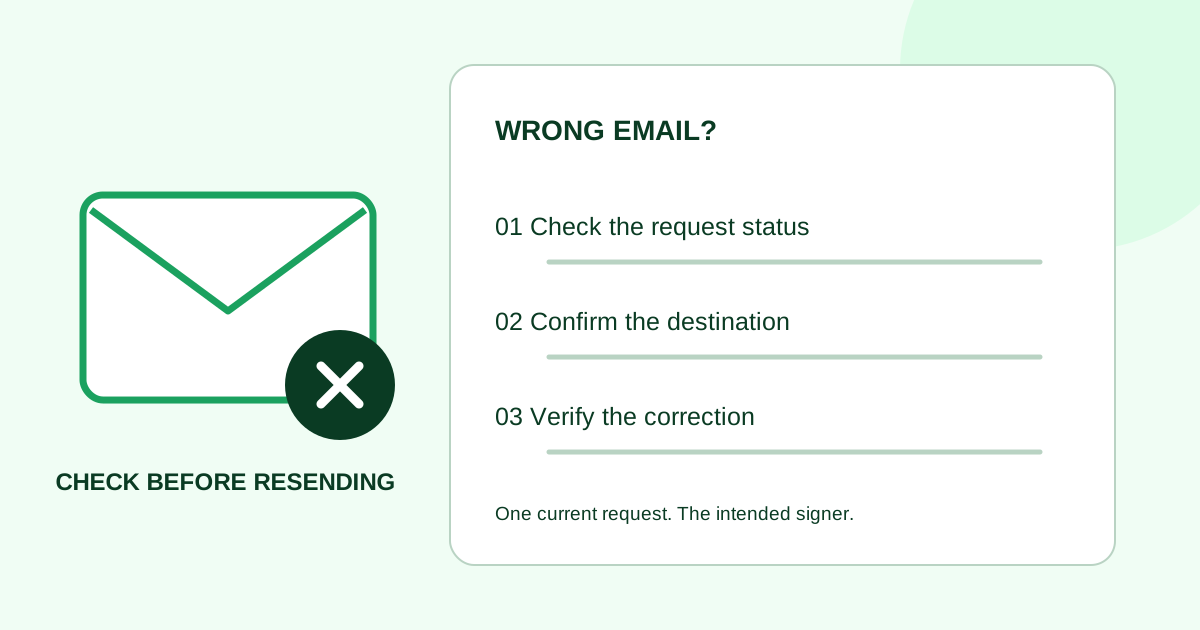
If you sent a signature request to the wrong email address, check the existing request before resending anything. Confirm the intended signer through a known contact channel, inspect the request’s status, and use the signing service’s supported correction process. A reminder to the same incorrect address will not fix the recipient.
This checklist helps small teams resolve a sending mistake without creating two competing requests. It covers workflow handling, not the legal effect of a signature or any incident-reporting obligations.
First, identify what went wrong
Open the request from your own account and compare the full recipient address with a confirmed contact record. Check both sides of the @: a correct display name can hide a misspelled mailbox or domain. Do not copy a signing link into a group email to ask who should use it.
| What you find | Practical next step | Do not assume |
|---|---|---|
| The request is still a draft | Correct the address and review the signer’s assigned fields before sending | A contact-list edit automatically updates the draft |
| The request was sent and the intended signer has not acted | Check whether the service permits correcting or replacing that recipient at this stage | Every service exposes the same controls |
| The address is correct but the invitation is missing | Check delivery details and the service’s resend process | Missing email means the address is wrong |
| Another recipient has already signed | Check which recipient can still be changed and what your service preserves | A new request will carry over earlier signatures |
| An unexpected person signed, or the request is completed | Preserve the record and involve the person responsible for the document before issuing anything else | Editing a contact record changes a completed document |
If the wrong address may have exposed sensitive material, use your organization’s established escalation process alongside the workflow correction. Keep document contents and recipient-specific links out of broad troubleshooting threads.
Confirm the destination before making the correction
Contact the intended signer through a channel you already use with them. Confirm the full address and whether that person is the intended signer. “Send it to our office” is not enough if several people share the mailbox.
Write a short internal correction note containing the request reference, document revision, status checked, confirmed destination, and next action. Keep it in the appropriate restricted project record. For a team with several senders, name one person to make the correction so two colleagues do not independently create replacement requests.
If the person has changed as well as the address, recheck the recipient’s role and the fields assigned to that signer. An email correction and a change of signing authority are different questions; the document owner should resolve who is meant to sign.
Use the service’s correction controls carefully
Read the current help for the tool and request status you are using. Look for what the action does to the original recipient, outstanding invitations, and any signatures already collected. If the available controls do not make that clear, ask the service’s support team before proceeding.
For example, Adobe Acrobat Sign’s recipient-replacement guide limits replacement to recipients who have not completed their action. It also distinguishes Replace recipient, which removes the original recipient’s further access, from Add Alternate Recipient, which leaves the original person able to participate. Those are different outcomes when the original address was wrong. These are Adobe-specific controls, not a description of Demand Signatures.
If correction is unavailable and a replacement request is needed, first resolve how the old request will be handled. Adobe’s cancellation guide is one example of a service-specific process. Follow your own service’s instructions and verify the resulting status; do not describe an old request as cancelled before that has actually happened.
Changing a request is not evidence that an email or downloaded copy disappeared from someone else’s device. Keep the correction record separate from any claim about what the unintended recipient saw.
Worked example: one wrong mailbox, two signers
A fictional agency sends website SOW revision 4 to Morgan, followed by an internal countersigner, Alex. The sender discovers that Morgan’s invitation went to an outdated address. Neither signer has acted.
The sender confirms Morgan’s current address using the established client contact channel, then checks the service’s supported options. If recipient correction is available, the sender applies it and verifies the recipient record and invitation result. If the service instead requires a new request, the sender resolves the old request first and records both references.
Before closing the task, the sender checks:
- Morgan’s confirmed address is attached to Morgan’s fields.
- Alex remains the intended second signer; the signing order has not changed accidentally.
- Revision 4 is still the approved PDF.
- The team knows which request is current and what happened to the earlier invitation.
The addresses and request references in this example are deliberately omitted. A correction log needs enough detail for the responsible team, not a public copy of the client’s information.
Tell the intended signer what to expect
After verifying the correction, adapt this message through your normal contact channel:
Subject: Updated invitation for [document name]
Hi [name],
I corrected the recipient address for [document name and revision]. Please use the new invitation sent to your confirmed address, [address].
If you cannot find it, let me know at [contact] before we send another request. Thank you for checking the document before signing.
Use that wording only if an updated invitation was actually sent. If you created a replacement request, say so and accurately describe the earlier request’s status. Do not include another person’s signing link. For a fresh invitation, see the signature request email templates.
Common questions
Can I just resend the original email?
First check the recipient stored on the request. Resending to the same wrong destination repeats the mistake. If the destination is correct and the issue is delivery, follow the tool’s supported resend process.
Can the wrong recipient forward it to the right person?
Avoid treating forwarding as a correction. Confirm the intended recipient and use the service’s supported process so the recipient record reflects who is supposed to act.
What if someone already signed?
Check the exact recipient, revision and request status. Preserve the existing record and involve the document owner. This guide does not determine whether a signature is valid or what replacement paperwork is appropriate.
How do I prevent the same mistake next time?
Check the full address, signer role, field ownership and document revision at the final send step. Update stale saved contacts or template defaults separately, then confirm the next draft uses the corrected details.
When a new request is appropriate, open the Demand Signatures PDF upload workflow; sign-in is required. Resolve the existing request before starting a replacement.
Sources checked October 5, 2026: Adobe Acrobat Sign’s recipient-replacement and cancellation guides linked above. The checklist, fictional example and message are original editorial guidance.
Comments
Questions and notes from readers. Every comment is reviewed before it appears.
Comments are unavailable right now. Please try again later.
Leave a comment