
Signature link expired? Check the link and request before sending again
Troubleshoot an expired signature link with a link-versus-deadline table, a recipient message and a worked sender status log that avoids duplicate requests.

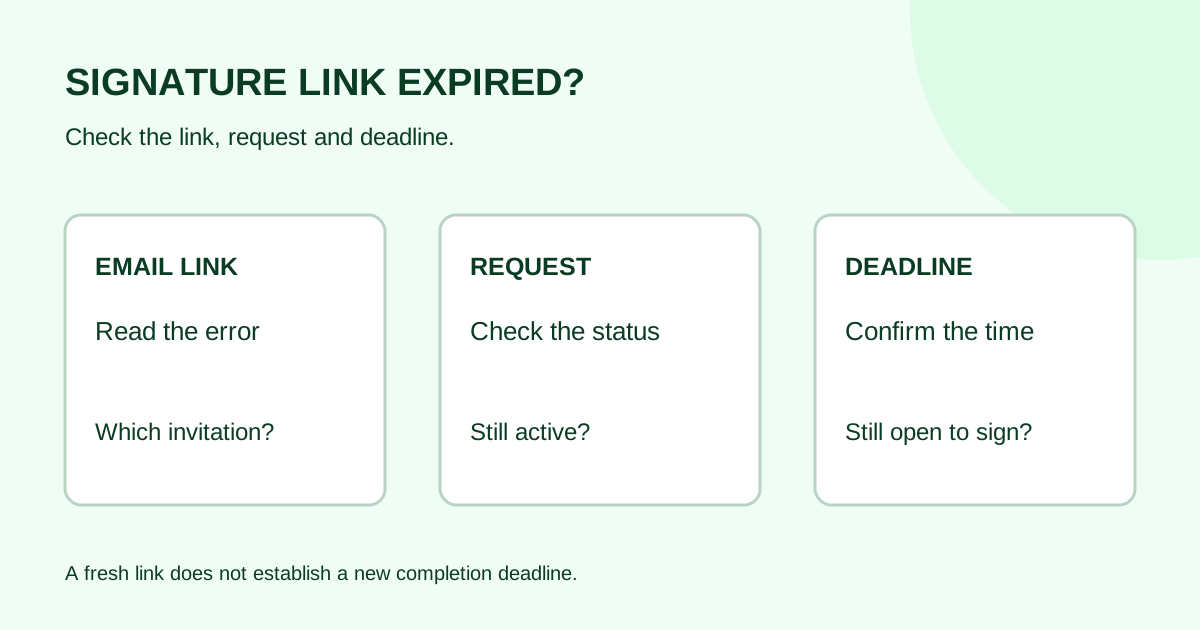
An expired signature link does not tell you, by itself, whether the signing request has ended. First read the exact message, then ask the sender to check the request status and completion deadline. If only the link expired, use the provider’s supported fresh-link process. If the request itself ended, the sender needs to decide the next step before another invitation goes out.
This checklist is for a client trying to open an invitation and the small-team sender helping them. It covers access troubleshooting, not the legal effect of a document or deadline.
Two different things can expire
A link lifetime controls how long a particular emailed URL opens the signing page. A completion deadline controls the time available to finish the request. A fresh URL is not evidence that a deadline has been extended.
For example, Adobe Acrobat Sign’s document-link guidance distinguishes the emailed URL from the agreement. Its expired-link screen can offer to send a new URL to the current recipient’s email address. That action does not redirect the invitation to a different person.
Separately, Adobe’s completion-deadline guidance explains that signing can stop at the deadline before the displayed agreement status changes to expired. Check the recorded deadline as well as the status label.
Those are Adobe-specific examples, verified October 17, 2026. Other providers have different controls. They do not establish a Demand Signatures link lifetime, renewal button or deadline-setting feature.
Match the message to the next check
| What the recipient sees | What the sender checks | Next step |
|---|---|---|
| The email link has expired | Request is still active, the deadline has not passed, and this is the intended recipient | Use the provider’s fresh-link option if available; confirm the recipient opens the newest email |
| The agreement or request has expired | Recorded deadline, request history and available actions | Have the document owner decide whether to continue; check provider instructions before replacing the request |
| The document is completed | Completion record and final copy | Retrieve the completed copy instead of asking the recipient to sign again |
| The request was cancelled, voided or declined | Who stopped it and why | Resolve that reason before sending anything else |
| Access denied, wrong account or recipient mismatch | Intended recipient and email address | Treat it as an access or routing problem; do not assume a new link will fix it |
| A blank page or generic browser error | Exact message, time and whether the newest invitation opens | Gather troubleshooting evidence; the symptom alone does not prove expiration |
For an incorrect address, use the wrong-email correction checklist. For a declined request, start with the declined-request next steps.
Recipient: send useful details, not the private link
- Open the newest invitation from the expected sender, rather than a bookmarked page or an old forwarded email.
- Note the document title, invitation date, exact error text and time of the attempt, including your time zone.
- If the known provider offers a fresh-link button, follow that process and check the intended inbox. Avoid repeatedly requesting links while delivery is pending.
- If you still cannot proceed, contact the sender through a known channel. Do not forward the signing URL to a colleague to test it or paste it into public support comments.
A concise message:
Subject: Unable to open the signing invitation for [document title]
I opened the invitation dated [date/time] and saw “[exact message]” at [time and time zone]. Please check whether the request is still active and whether its completion deadline has passed. If it is still available for me to sign, please confirm how I should obtain the current invitation.
If a screenshot is needed, crop out the address bar, private document contents and unnecessary personal details. The sender needs the error evidence, not your signing token.
Sender: check one request before creating another
Open the request through your normal account route. Match the document title and revision to the intended recipient. Record the request reference, status, deadline if present, and time checked.
Then choose one action:
- Active request, link-only problem: use the provider’s documented renewal or reminder route for that request. Confirm delivery to the intended recipient.
- Deadline reached or request ended: ask the document owner whether the document is still current. Follow the provider’s supported process; do not promise that a reminder reopens it.
- Completed request: locate the final record using the completed-document filing checklist.
- Unclear status: contact provider support with the request reference and redacted error details before creating competing requests.
If a replacement is necessary, record how it relates to the original and tell the recipient which invitation is current. Keep the earlier request history traceable. Do not change the document’s business deadline merely to solve a link problem.
Worked example: an old email, an active request
This fictional example illustrates the checks; it is not a description of Demand Signatures settings.
An agency sent “Website support SOW, revision 3” on Monday. On Thursday, the client opens Monday’s email and sees “link expired.” The agency’s sender checks the same request and finds it active, with a recorded completion deadline of Friday at 5 p.m. in the agreed time zone.
| Register field | Example entry |
|---|---|
| Document and revision | Website support SOW, revision 3 |
| Request reference | SAMPLE-042 |
| Recipient symptom | Monday invitation says link expired |
| Sender check | Active; Friday 5 p.m. deadline has not passed |
| Action | Use this provider’s supported fresh-link process for the same recipient |
| Verification | Client opens the new invitation and confirms the title and revision |
| Follow-up | Sender checks completion separately; successful access is not a signature |
Now change one fact: the client tries on Saturday, after the recorded deadline. The sender must check the deadline and current request state again. Reusing Thursday’s diagnosis would miss the changed situation.
Common questions
Does a fresh link mean I have signed?
No. Opening the document is an access check. Complete the provider’s signing steps and check for its confirmation. The sender should verify the request’s completion state separately.
Should the sender just send another reminder?
Only after checking the request. A reminder may help an active request, but it does not establish that an ended request can resume. Use the reminder email examples once the access issue is resolved.
Can I forward the link to a different signer?
Ask the sender to confirm the intended recipient and use the provider’s supported recipient-change process. Forwarding a private invitation is not a substitute for correcting the recipient record.
What if there is no visible deadline?
Record that it is not shown and check the provider’s request details or support guidance. Do not invent a deadline from the age of the email.
Prepare the next send
Before your next client request, confirm the recipient, document revision and follow-up owner. Review Demand Signatures features, or upload a document in Demand Signatures when you are ready to prepare a new request; sign-in is required. Troubleshoot an existing invitation with its sender first.
Comments
Questions and notes from readers. Every comment is reviewed before it appears.
Comments are unavailable right now. Please try again later.
Leave a comment