
Typo in a completed signed PDF? Preserve the record and plan the correction
Handle a typo in a completed signed PDF with a triage table, correction register and worked example that keeps original and revised records distinct.

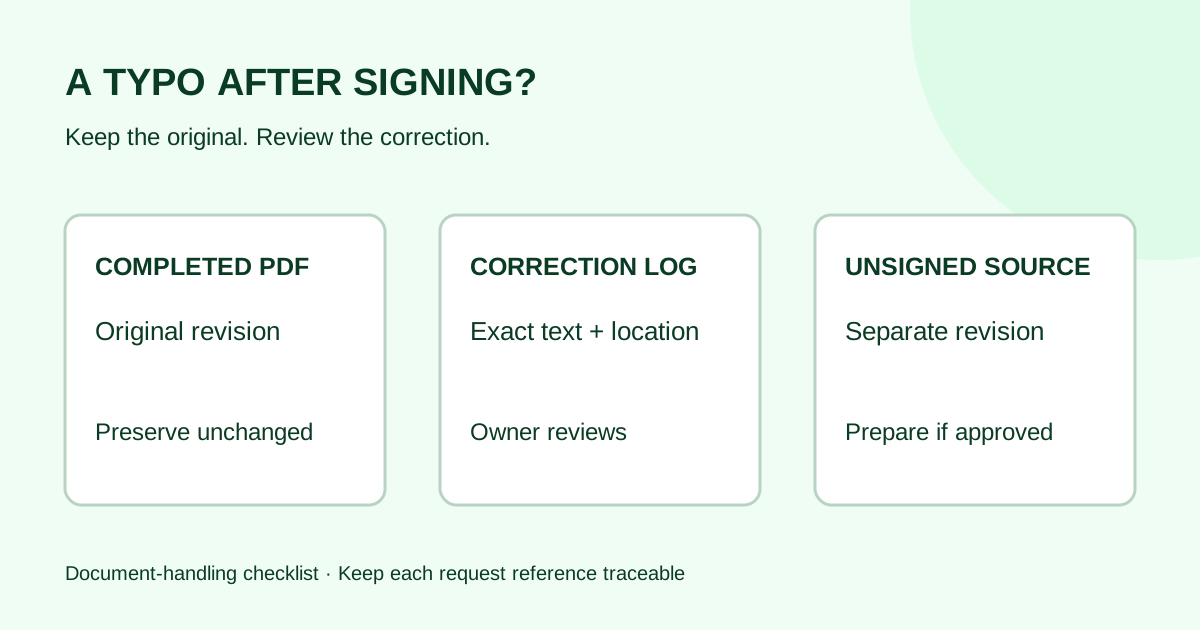
Found a typo in a completed signed PDF? Keep the completed file unchanged, record the exact issue, and ask the document owner to approve the correction path before preparing another request. A PDF editor’s ability to change text does not tell you whether that change is appropriate for a completed agreement.
For a small agency or service firm, the immediate task is to keep three things distinct: what was signed, what needs checking, and what has been approved for a new send. This guide provides a correction register and a worked example. It covers document handling, not whether a contract needs an amendment or what legal effect a replacement would have.
Why is the signed PDF locked?
The answer depends on the signing method and the service that produced the file. Adobe’s guidance on signed PDF limitations explains that digital-ID signatures and locking settings can restrict editing. For documents signed by multiple people, it directs users toward an unsigned version or source file.
Separately, Adobe’s Acrobat Sign PDF guidance describes password sealing of its signed exports by default. Those are Adobe-specific behaviors, not claims about how every electronic-signature service or Demand Signatures protects files.
For an operational correction, start with the source document and a review decision. Do not make removing restrictions from the completed export your first step. Even if a file opens in an editor, preserve the downloaded original so colleagues can identify the record you are discussing.
First, identify which problem you actually have
| What you found | What to record | Next owner or action |
|---|---|---|
| Typo in the body of a completed document | Page, section, exact current text and proposed text | Document owner reviews the correction and intended process |
| Wrong amount, date, scope or party detail | Exact discrepancy and where the expected value came from | Document owner resolves the substance before the sender prepares anything |
| Filename or internal filing label is wrong, but document contents are correct | File location and incorrect register entry | Records owner checks the filing label without changing PDF contents |
| Recipient says the final copy differs from their copy | Request reference, filenames and page counts | Sender compares the actual exports before assuming a typo |
| Request is still awaiting another signer | Current request status and affected version | Sender checks the service’s active-request process; this is not a completed-file correction |
Avoid describing a discrepancy as “just a typo” until the responsible owner has reviewed it. One changed digit can alter what the document says. The sender’s job is to surface the difference accurately, not decide its significance from its length.
If the problem is an incorrect recipient address, use the wrong-email checklist. If you are unsure which downloaded files belong together, compare the signed PDF and completion record first.
Make a correction register before opening the source
Keep the register in your team’s approved records location, separate from the completed PDF. Include:
- The completed request reference, document title and saved-file location.
- The page and section containing the possible error.
- The existing text and proposed correction, quoted exactly.
- Who reported the issue and when it was reported.
- The document owner, review decision and next action.
- Any new source revision and request reference, once those exist.
A status such as “reported; awaiting owner review” is more useful than naming an unreviewed file “corrected-final.” Give the register a next owner so the request does not disappear into a shared folder.
Do not overwrite the completed export with an edited copy. Do not paste an old signature image into a new source version to make it look finished. Keep proposed corrections clearly labeled as drafts until the appropriate review is complete.
Worked example: a project-title typo
This fictional agency has a completed four-page statement of work, revision 3, under request reference EXAMPLE-104. The project heading on page 1 says “Cedar Webiste.” A teammate reports that it should read “Cedar Website.” The example assumes the document owner later approves a revised source and a fresh signing request; that is an example decision, not a rule for other agreements.
| Register field | Example entry |
|---|---|
| Original record | EXAMPLE-104, SOW revision 3, completed export preserved |
| Reported issue | Page 1, project heading: “Cedar Webiste” |
| Proposed text | “Cedar Website” |
| Initial status | Awaiting document-owner review |
| Approved preparation | Create unsigned revision 4 from the source; check the complete PDF before a new request |
| New request | EXAMPLE-119, recorded only after the approved send |
| Filing link | Both request references recorded together with the owner’s decision |
The sender edits the unsigned source, exports revision 4 and compares all four pages with the intended revision. A spelling change can shift a heading or paragraph; inspect the signature page and field positions again rather than assuming the old layout still fits.
Before sending, the sender verifies the recipient list, the approved invitation and each field’s owner. The recipient field-map guide can help with that last check. The original request remains a separate record in the register. A later request reference does not, by itself, explain the relationship between the documents.
Explain the next step without promising a legal result
While the issue is under review, a sender could write:
Thank you for flagging the project heading on page 1 of the completed statement of work. I have recorded the current wording and the proposed correction for our document owner to review. I will confirm the next step after that review. Please reference request EXAMPLE-104 if you send any further details.
Once the owner approves a new request, name the new revision and describe the reviewed change in the invitation. Avoid announcing that an earlier agreement is “void,” “automatically replaced” or “still valid” based only on your file-handling process. Those conclusions are outside this checklist.
Use the request email examples for the invitation structure, then adapt the wording to the actual approved action. Do not send a fresh request merely because someone has asked whether an edit is possible.
Before sending an approved correction
- Confirm the owner’s decision and the exact text approved for preparation.
- Work from the unsigned source and give the new revision a distinct label.
- Compare the exported PDF against the intended changes, including pages that were not meant to change.
- Recheck page count, field placement, recipients and signing order.
- Explain the new request accurately in the invitation and record its reference after sending.
- When it completes, save its exports separately and connect the records in the register.
The completed-document filing guide explains how to keep those files retrievable. A teammate should be able to find both the original record and the reviewed follow-up without guessing which “final” filename to open.
Common questions
Can I edit a PDF after other people have signed it?
Technical permissions vary. In Acrobat’s digital-signature workflow, Adobe recommends obtaining the unsigned source when multiple people have signed. For your team’s records, preserve the completed export and have the document owner decide the next step before preparing changes.
Does every spelling correction need everyone to sign again?
This guide does not determine that. The document owner must establish the appropriate process, including any needed legal review. The checklist starts with documenting the difference and ends with carrying out the approved preparation.
What if I cannot find the unsigned source?
Ask the document owner or original preparer for it. Record that the source is missing and keep the completed export unchanged. Do not recreate a supposedly completed version by copying signatures from the signed PDF.
Can I rename the file instead?
A filename change will not correct text inside the PDF. If only an internal filing label is wrong, handle that as a records task and keep the request reference traceable. Open the file first to establish whether the issue is in its name or its contents.
Sources checked October 16, 2026: the two Adobe guides linked above. The triage table, register and fictional example are original editorial guidance. No Demand Signatures editing, unlocking or legal-effect capability is asserted.
When an unsigned correction is approved and ready, open the Demand Signatures upload workflow; sign-in is required.
Comments
Questions and notes from readers. Every comment is reviewed before it appears.
Comments are unavailable right now. Please try again later.
Leave a comment