
Signature request email templates: what to say before they sign
Copy three signature request email examples, choose a clear subject line, and check the recipient, revision and next step before sending.

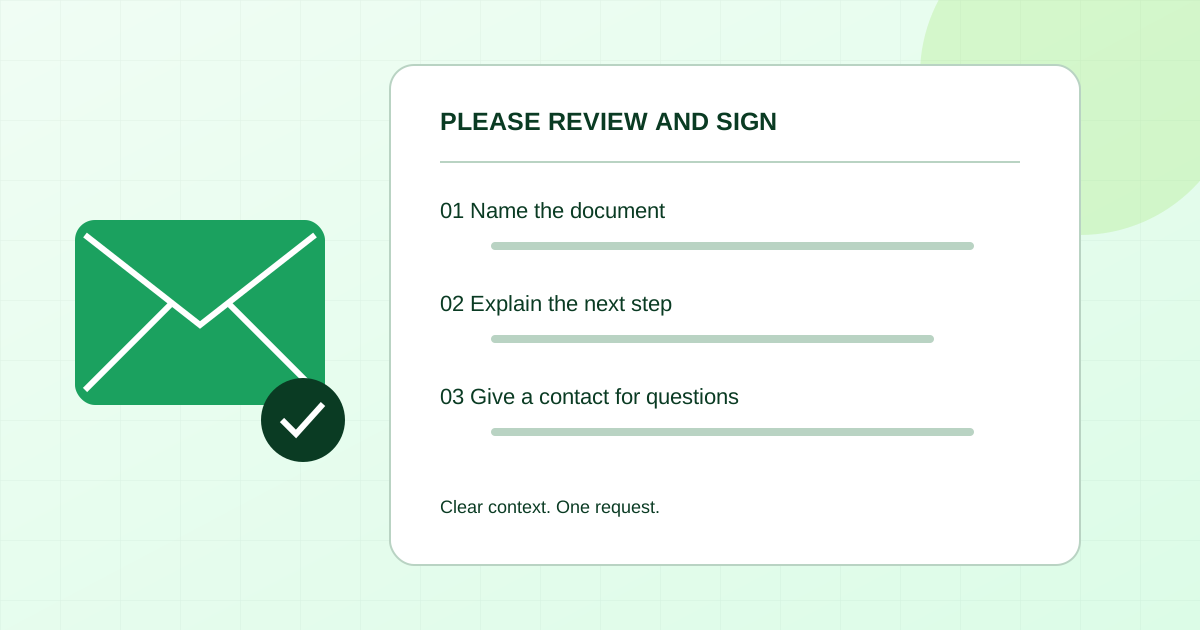
A useful signature request email tells the recipient what the document is, why it is arriving, and what to do next. Name the document and revision, ask the person to review it before signing, and give them a way to ask questions. Include a deadline only when there is a real one.
Use the templates below for an already-reviewed document. Replace every bracketed placeholder before sending. These are original communication examples, not contract language or promises about response rates.
Start with this signature request email template
Subject: Please review and sign: [document name] — [project or reference]
Hi [first name],
I’m sending [document name and revision] for [project or purpose], following our conversation on [date].
Please review the full document and, if it matches your understanding, complete the signature request. If anything needs changing, contact me at [monitored email or known contact channel] before signing.
Optional deadline sentence: Please complete this by [date, time and time zone] so we can [agreed next step].
Thank you, [your name] [company or team]
Rewrite the optional deadline sentence in normal language, or remove it. For example: “Please complete this by 3 p.m. Eastern on October 9 so we can confirm the October 12 planning meeting.” Use that wording only if those dates and the reason are accurate.
Decide where the message belongs
A personal heads-up email and the signing service’s invitation serve different purposes. The heads-up establishes context; the invitation provides the recipient’s signing action. If you send both, say which message they should use to sign.
Some services let senders customize invitation text. Adobe’s sending instructions include reviewing the agreement name, message and recipients before sending. Docusign’s developer documentation describes subject and body customization through its API. These are service-specific examples, not evidence that every tool exposes the same controls.
Use these templates in your normal email client or in a message field your signing tool actually provides. When the tool generates the invitation, keep its recipient-specific signing action intact. Do not copy one person’s signing link into a group email.
Choose a subject line that identifies the work
| Situation | Subject line to adapt | Check before sending |
|---|---|---|
| First request | Please review and sign: [document] — [project] | The recipient recognizes the project reference |
| A real deadline | [Document] for signature — requested by [date] | The body explains the timing and includes a time zone if needed |
| A revised document | Revised [document] for signature — revision [number] | The request contains that exact revision |
| A separate heads-up | Signature request to follow: [document] | The signing invitation really will follow |
Keep sensitive details out of subject lines. A project reference may be enough; a full account number or a private description of the work is unnecessary. Avoid “URGENT” unless the situation warrants it, and avoid “final notice” for a first request.
Example 1: a heads-up before the invitation
Use this when your client knows you but may not recognize an automated signing email.
Subject: Signature request to follow: Harbor website SOW
Hi Morgan,
I’ll send the Harbor website statement of work, revision 3, through [signing service] today. It is the version we reviewed together on October 1.
Please use the separate signing invitation to review the complete document and sign if everything matches your understanding. If you are unsure about the request, contact me through our usual email thread before opening it.
For questions or changes, email [monitored address].
Thanks, Alex
Harbor, Morgan and Alex are fictional. Replace the service name, revision and dates with the actual details. Do not describe an unfamiliar message as safe merely because it displays a recognizable brand.
Preparing the document itself? Use the agency SOW handoff checklist first.
Example 2: a short invitation message
Use this inside a signing tool’s message field if that field is available. The tool supplies the signing action, so the note does not need another link.
Hi [name], this request contains [document name], revision [number], for [project]. Please review the complete document before signing. If a detail needs changing or you are not the intended signer, contact [name] at [monitored address] before proceeding. Thank you — [sender name].
Do not tell an unintended recipient to forward the invitation to someone else. Confirm the correct recipient and use your service’s supported correction process. The email message cannot fix a field assigned to the wrong person; use the field ownership checklist before sending.
Example 3: explain what changed in a revised request
Use this only after your team has resolved how to handle the earlier request. The wording must match the actual status; saying “replaced” does not cancel anything in a signing system.
Subject: Revised project schedule for signature — revision 4
Hi [name],
I’m sending revision 4 of [document] for your review and signature. This version updates [brief, accurate description of the change] following our conversation on [date].
Please review the whole document, including the updated section. Use the new invitation labeled [exact request title]. [Describe the confirmed status of the earlier request, or remove this sentence.]
If anything differs from what we discussed, contact me at [monitored address] before signing.
Thank you, [sender name]
Do not use the email to introduce a new fee, scope item or obligation that is missing from the document. Resolve the document first, then explain the handoff.
Check these five details before sending
- Recipient: confirm the intended signer and email address through your normal process.
- Version: match the filename, request title and revision mentioned in the email.
- Action: distinguish reviewing, signing and receiving a copy. Ask for the action this recipient actually needs to take.
- Contact: provide an address or channel someone monitors. Do not assume replies to an automated invitation reach you.
- Timing: remove leftover placeholders, invented deadlines and promises about what will happen next.
If another person must sign afterward, mention that only when the workflow is configured accordingly. The signing-order guide covers that separate decision.
Common questions
How do I politely ask someone to sign a document?
Name the document, give the context, and ask them to review before signing. “Please review [document] and sign if it matches your understanding” leaves room for questions without obscuring the requested action.
Should I attach the PDF as well as sending a signing invitation?
Decide which copy is for reference and which request is for signing. If your process needs a reference attachment, label it clearly and confirm it matches the signing version. Avoid asking the recipient to choose between two unexplained copies.
What if I don’t have a deadline?
Leave it out. Ask the recipient to let you know when they expect to review it if you need to plan. A fabricated deadline creates confusion about the actual agreement or schedule.
Can I reuse the same message for every client?
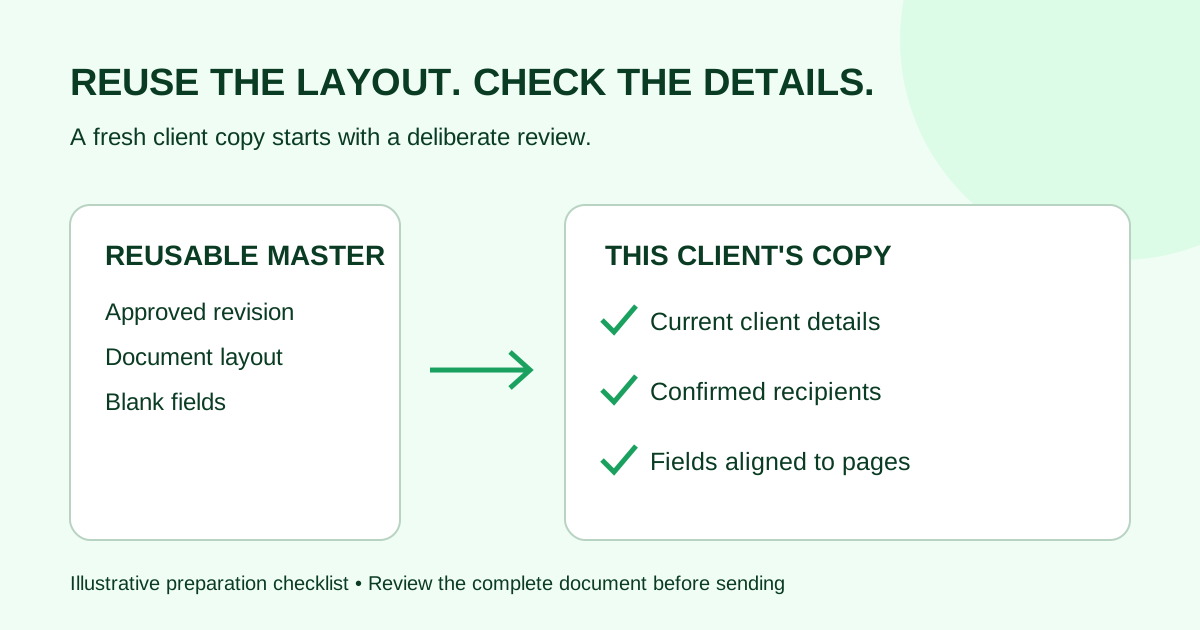
Reuse the structure, then replace the document name, revision, recipient, contact details and next step. Read the result as a complete email; leftover text from another client can make a correct document look like the wrong request.
Ready to prepare the request? Open the Demand Signatures PDF upload workflow. Sign-in is required. Keep your invitation wording consistent with the document you upload and the recipients you select.
Sources checked October 2, 2026: Adobe Acrobat sending instructions and Docusign email customization documentation linked above. The templates and editorial checklist are original examples.
Comments
Questions and notes from readers. Every comment is reviewed before it appears.
Comments are unavailable right now. Please try again later.
Leave a comment