
I signed—why is the document not completed?
Reconcile a recorded signature with an unfinished request using a recipient-status checklist, a worked countersignature log and final-copy checks.

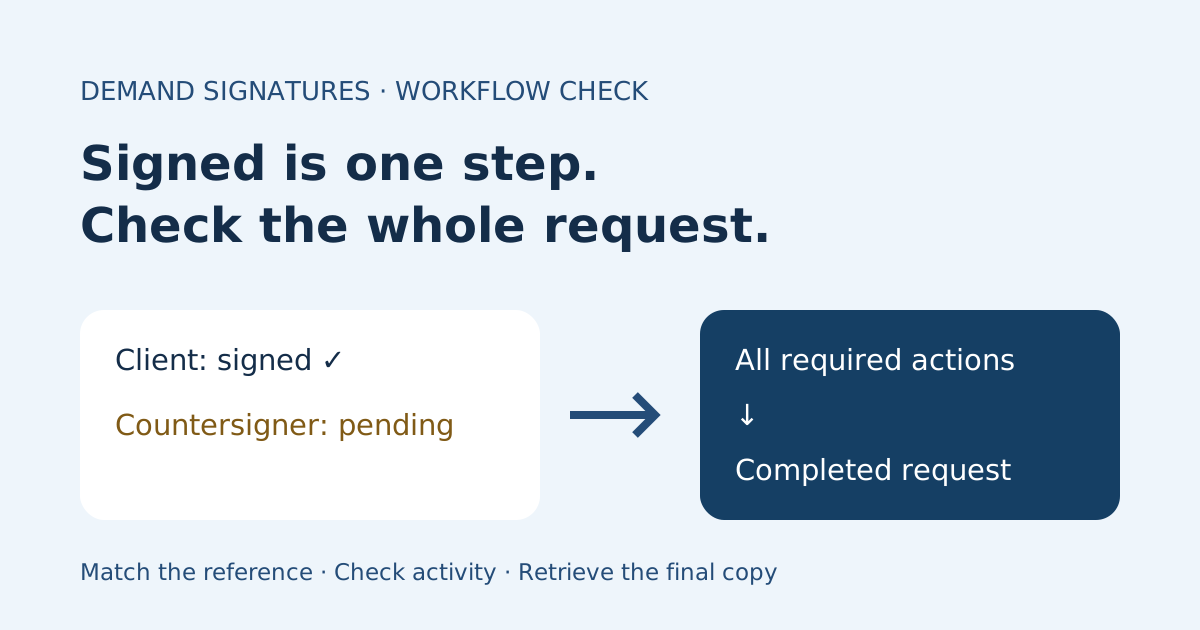
If you signed but the document is not marked completed, ask the sender to check the whole request, not just your signature. Another recipient may still need to act, or your own final submission may not have been recorded. Match the request reference and revision, then compare each recipient’s activity with the overall status before creating another request.
This guide is for recipients and small-team senders reconciling “I signed” with an unfinished workflow. It explains operational checks, not whether an agreement is legally effective.
Separate three different checkpoints
| Checkpoint | What it tells you | What it does not establish |
|---|---|---|
| A signature appears on a page | A visible mark is present in that copy | The recipient submitted the signing session |
| One recipient’s action is recorded | The service recorded that person’s step | Every other required participant has finished |
| The request shows completed | The provider reports the overall workflow finished | Your team has downloaded and filed the correct final record |
Provider labels differ. Adobe’s agreement-management documentation distinguishes recipient activity from agreement status and describes Completed as signed by all parties. Check your own service’s definitions rather than treating a label from another provider as a Demand Signatures status definition.
Check the recipient’s last step
If you are the signer, describe what happened after you placed the signature. Did you select the final submit or finish control? Did a confirmation appear? A screenshot of a signature box alone is not enough to reconcile the request.
- Confirm the sender, document title and revision using a known contact channel.
- Record the approximate time and time zone of your action.
- Look for the provider’s confirmation, without sharing your private signing link.
- Tell the sender whether you saw an error, closed the browser or lost the connection before confirmation.
- Ask the sender to check recorded activity before you repeat the process.
If the page no longer opens, use the expired signing-link checklist. Do not forward the personal invitation to a colleague or assume a second request is required.
Check the whole request as the sender
Open the original request through your normal account route. Match its reference, title, recipient list and revision with the signer’s message. Similar filenames can hide two different requests.
| Observation | Next check | Appropriate next action |
|---|---|---|
| Signer reports finishing; their activity is still pending | Final submission, error and request reference | Ask for the last screen and time; investigate the original request |
| One signer is done; another is pending | Current recipient and configured order | Follow up with the person whose action is due |
| All visible signers appear done; request remains in progress | Other required roles and activity history | Check provider documentation or contact support with the reference |
| Request is completed; recipient has no final copy | Download availability and notification destination | Retrieve the completed record through the approved route |
| Recipient signed an older revision | Request references and revision history | Preserve both records and return the discrepancy to the document owner |
For a planned client-first countersignature, the client finishing may simply mean the countersigner’s turn has arrived. The signing-order guide explains that setup; this check establishes what has actually happened on an existing request.
Adobe’s Manage page overview describes a running count of participants who completed their actions and a current participant. Those are Adobe-specific interface details. Use the equivalent information your provider actually exposes; do not infer that every tool has the same panel or controls.
Worked example: one signature, two required actions
This fictional log shows an agency reconciling a client’s message. Times are illustrative, not a processing-time promise.
| Time | Recorded observation | Owner and next action |
|---|---|---|
| 09:10 | Request SOW-014-R2 sent with client first, agency countersigner second | Sender records the request reference |
| 09:25 | Client says “I signed”; client action is recorded; overall request remains pending | Sender checks the next required recipient |
| 09:30 | Agency countersigner has not acted | Sender follows up internally, without asking the client to sign again |
| 10:05 | Countersigner action recorded; request shows completed | Operations retrieves and checks the final record |
| 10:15 | Final PDF and associated completion record matched to SOW-014-R2 | Operations files them in the approved project location |
The client’s statement was accurate. It described one person’s step. The sender’s log also remained accurate: the whole request was unfinished until the remaining action occurred.
A useful internal note is: “Request SOW-014-R2: client action recorded at 09:25; agency countersignature pending; Alex owns follow-up.” Keep personal signing URLs and document contents out of shared status notes.
When the activity and status disagree
Do not diagnose a platform failure from a missing email alone. Refresh the request view once, check the activity timestamps and look at the provider’s current service information. Record what remains inconsistent.
For support, provide the request reference through an approved private channel, the displayed overall status, which recipient actions are recorded, timestamps with time zone and any error text. Remove sensitive content from screenshots. Ask which required action remains or whether the provider is still finalizing the request; do not promise a universal completion time.
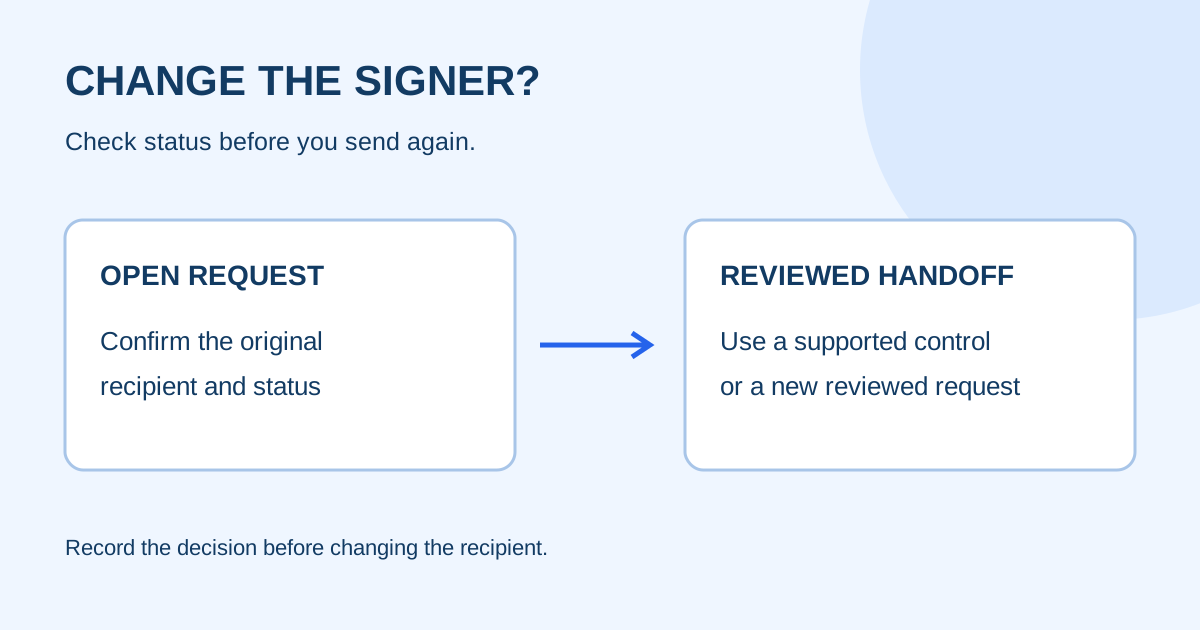
Avoid a replacement send while the original request is still unresolved. A second request can make it harder to identify which revision and activity record the team should follow. If a correction is necessary, let the document owner decide the next step and preserve the existing record.
Confirm completion before filing
After the provider reports completion, retrieve the final PDF and any associated completion record your service supplies. Match the request reference, document revision, expected pages and recipient activity. The completion certificate versus signed PDF guide explains why the records serve different operational purposes.
Then use a consistent completed-document filing register. A final copy that nobody can find is a separate handoff problem from a request still awaiting signatures.
Common questions
Should I sign again if the sender says it is pending?
First reconcile the reference and recorded action. If your step is recorded and another person is pending, repeating your signature does not address that missing action. If your step was not submitted, follow the sender’s verified instructions for the original request.
Does a completion email prove I have the correct final file?
Use it as a prompt to check the record. Match the reference and revision, then open the retrieved file and check its pages. An email subject alone does not distinguish similarly named requests.
What if every signer says they finished?
Compare those reports with the activity history. Check for a required approval or other role if your workflow includes one, then ask support about any remaining mismatch. Do not invent an extra signer or assume the service is broken.
Sources checked October 31, 2026: Adobe agreement management and Manage page overview. Provider-specific descriptions do not establish Demand Signatures feature parity or legal outcomes.
Review Demand Signatures features, or open document upload when you are ready to prepare a new request; sign-in is required.
Comments
Questions and notes from readers. Every comment is reviewed before it appears.
Comments are unavailable right now. Please try again later.
Leave a comment