
Signature request declined? What to check before sending again
Handle a declined signature request with a reason-to-owner table, a worked revision register and a neutral recipient response before sending again.

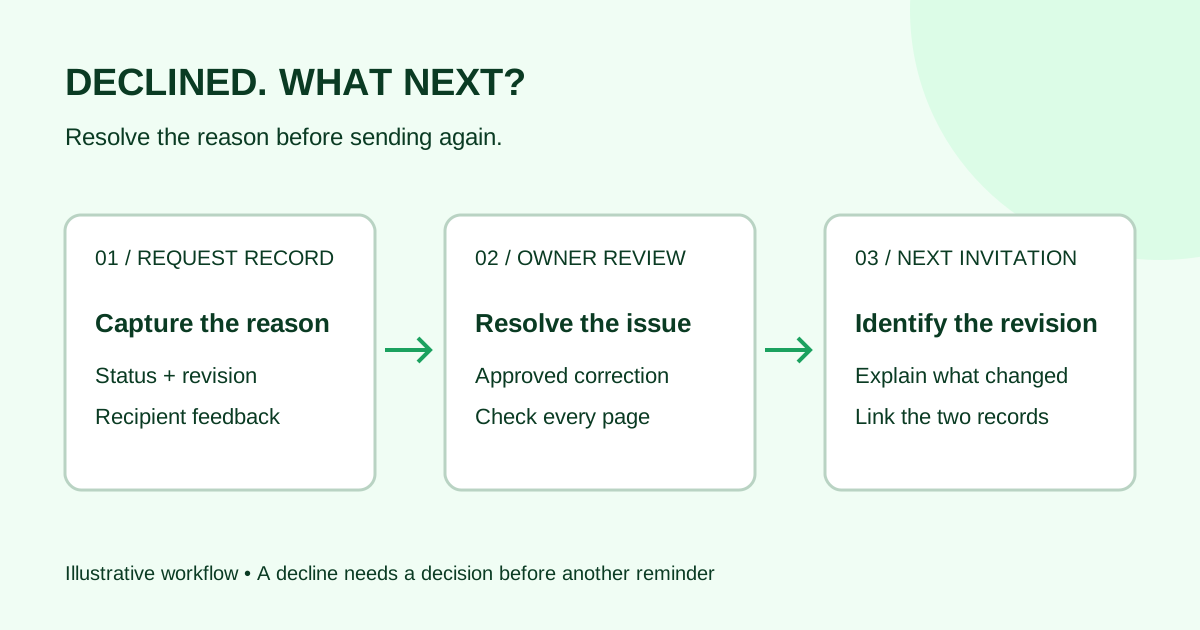
When a signature request is declined, check the request record, capture the recipient’s reason and resolve the issue before sending another invitation. A decline needs a decision, not another routine reminder. Confirm what happened to the whole request, including any other recipients, and keep the earlier record linked to any reviewed replacement.
This checklist is for small agencies and service teams handling the document workflow. It does not determine the legal effect of a refusal, a previous signature or a replacement agreement.
First, distinguish a decline from an unanswered request
Open the signing service directly and match the document name, revision and request reference to the notification. Check the recipient history as well as the overall status. A client email saying “I cannot sign this” could describe a technical problem, a proposed change or an explicit refusal; do not guess which one.
Provider behavior matters. Adobe’s recipient guidance says declining stops that agreement’s progress and notifies the sender. Its decline configuration guide also explains that the decline event is recorded in activity and audit records, while the recipient’s comment appears in the activity list rather than the audit report. Those are Adobe-specific details, not a description of Demand Signatures controls.
For the service you use, confirm the actual status and available actions. Do not assume another signer can continue, the old link can be reused, or a declined request can be reopened.
Match the reason to the next owner
Use this table as an internal triage guide. Record the recipient’s actual words separately from your interpretation.
| What the recipient reports | Next owner and action | Check before another request |
|---|---|---|
| A date, name or project detail is wrong | Document owner checks the source and prepares the correction | The approved PDF and invitation identify the same revision |
| Scope, fee or another term is disputed | Account or business owner discusses the requested change | The agreed wording has been reviewed; the sender is not improvising terms |
| “I am not the right person to sign” | Account owner confirms the intended recipient through the established contact channel | Name, address and signing role are confirmed; no forwarded personal signing link |
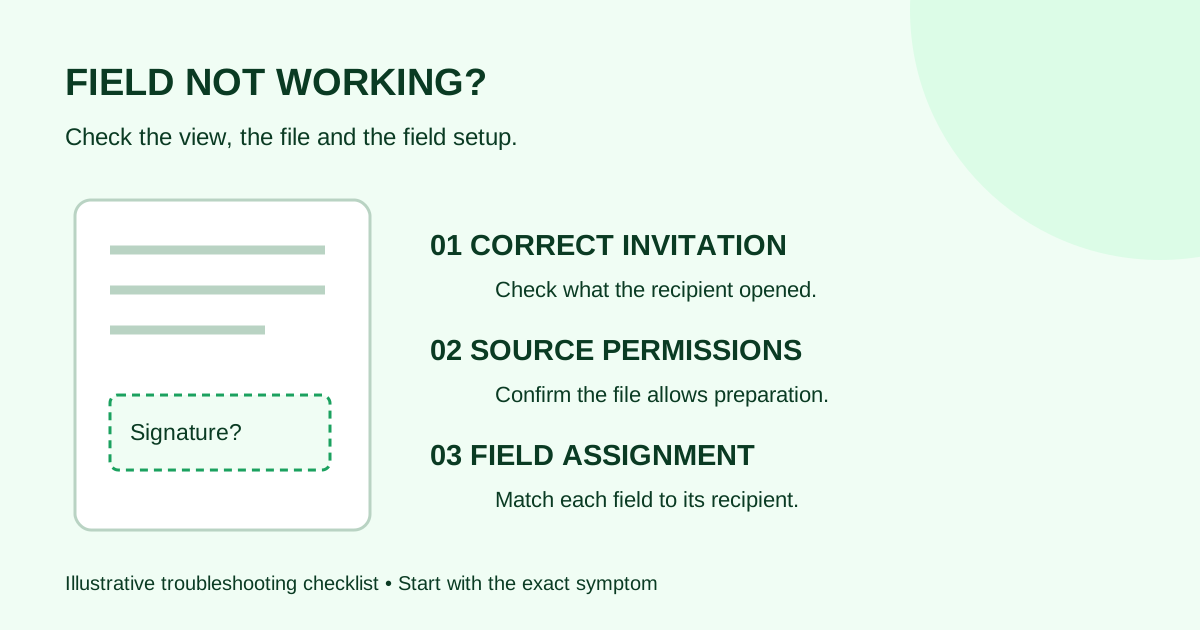
| A field or page will not work | Sender records the exact symptom and checks the file and field setup | The reported problem is resolved and the request status is understood |
| The document is a duplicate or an old version | Sender compares request references and the document register | Everyone can identify the current request and the earlier record |
| No reason is available | Account owner asks one neutral clarification question | There is an agreed next step rather than an assumed correction |
| The recipient does not want to proceed | Business owner records the response and decides the next business step | No further signature chase is sent without a reason to resume |
For technical symptoms, use the PDF signature field troubleshooting checklist. For an address error, use the wrong-email correction checklist. Neither problem should be disguised as a routine follow-up.
Capture a small decline record
Keep enough information for a colleague to understand the decision without searching several inboxes:
- Document title, revision and request reference.
- Overall status, recipient status and time checked, including the time zone.
- Decline reason or a note that no reason was supplied.
- Other recipient actions already recorded, if any.
- Person responsible for the correction or discussion, with the next check date.
- Replacement revision and new request reference, if a replacement is later issued.
Store that record with the project’s controlled files. Avoid copying private recipient details or signing links into a broadly shared tracker. Preserve the earlier document and available activity record; an internal label such as “replacement prepared” is not proof that the signing service has closed the old request.
A worked example: the wrong project start date
This fictional example shows a document correction after a decline. It is not a legal replacement procedure.
A small agency sends Harbor’s website statement of work, revision 2, to Morgan and then Alex. Morgan declines because page 2 gives November 2 as the start date, while the project team’s approved schedule says November 9. The sender checks the service and records that the request is declined and Alex has not signed.
The account owner verifies the intended date. The document owner corrects the source, reviews the rest of the schedule for conflicts and exports revision 3. The sender checks all pages and recipient fields again instead of assuming revision 2’s layout still fits.
| Register item | Earlier request | Reviewed replacement |
|---|---|---|
| File revision | Harbor website SOW, revision 2 | Harbor website SOW, revision 3 |
| Request reference | SAMPLE-042 | SAMPLE-043, recorded after sending |
| Reason for change | Recipient flagged the page 2 start date | Start date corrected after owner review |
| Status entry | Declined, as verified in the service | Record the actual new-request status after sending |
| Cross-reference | Replacement: SAMPLE-043 | Earlier request: SAMPLE-042 |
Before issuing revision 3, the sender confirms how the service handles the earlier declined request and checks that the recipients know which invitation to expect. The new message identifies revision 3 and the specific change. Nothing in the register treats the old request as completed or carries an earlier signature onto the revised PDF.
If someone had already signed revision 2, the sender would pause for the responsible document owner to determine the appropriate process before issuing revised material. This checklist does not resolve the effect of that earlier signature.
A neutral response to the recipient
Use this original example after checking the record. Replace the brackets with confirmed details, and only promise actions you control.
Subject: Next step for [document title and revision]
Hi [name],
I saw that the signature request for [document and revision] was declined. Thank you for flagging [the specific issue, if known].
I’ll check this with [responsible person or team] before we send another request. [If the reason is unclear: Could you let me know which detail or step prevented you from proceeding?]
I’ll follow up by [realistic date] with the next step. If we issue a revised request, I’ll identify the revision and explain what changed.
Thanks, [sender]
Keep commercial negotiations with the person authorized to handle them. Avoid saying the problem is “just a formality,” that the recipient must sign, or that a replacement has already been sent when it has not.
Before sending a reviewed replacement
- Confirm the underlying issue is resolved and the document owner has approved the revised file.
- Verify the earlier request’s status and the service’s supported next action. Do not create competing active requests by accident.
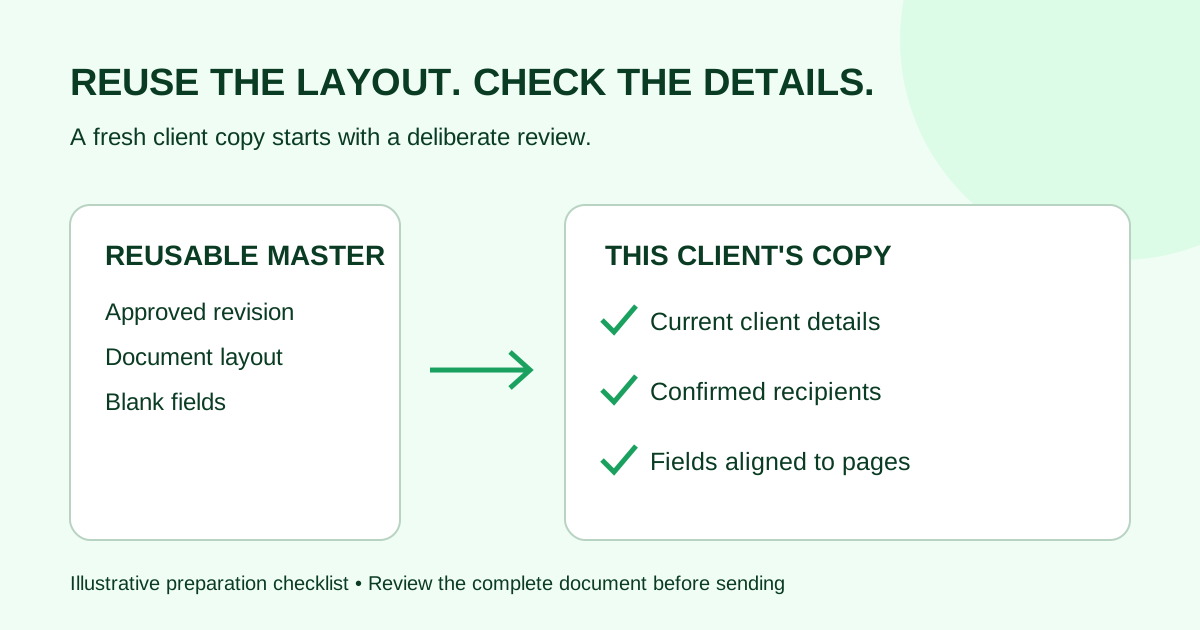
- Check the complete PDF, current recipients, field assignments and signing order.
- Identify the new revision and meaningful changes in the invitation. Direct each person to their own invitation.
- Record the new request reference against the earlier one and check the actual send result.
Use the reusable-template checklist if the replacement starts from a saved layout. For an unanswered request with no decline or unresolved change, the signature reminder examples cover the different follow-up task.
Common questions
Can I resend a declined signature request?
Check the service’s documented behavior and the reason for the decline first. The appropriate next action may be a reviewed new request, a corrected recipient, a technical fix or no further send. Do not assume “resend” will reactivate the earlier request.
What if the recipient declined by mistake?
Confirm that with the recipient, then check the recorded status and supported recovery process. Explain any new invitation clearly so they do not try to act on an earlier link that no longer works.
Should I delete the declined document?
Keep the earlier record under your organization’s retention process. It helps explain why a later revision exists. Do not delete it merely to make the pending-request list look cleaner.
Does a decline tell me what happens to the contract?
This guide addresses sending and record handling, not contractual consequences. Route questions about obligations, earlier signatures or legal effect to the person responsible for that advice.
Sources checked October 13, 2026: the two Adobe guides linked above. The triage table, register and email example are original editorial guidance; no Demand Signatures decline, reopening or automatic-replacement capability is asserted.
When an approved PDF is ready for a new request, open the Demand Signatures upload workflow; sign-in is required.
Comments
Questions and notes from readers. Every comment is reviewed before it appears.
Comments are unavailable right now. Please try again later.
Leave a comment