
Resend a signature request without creating a duplicate
Choose between a reminder, resend and replacement with a status-first checklist, a two-recipient worked example and a duplicate-request reconciliation log.

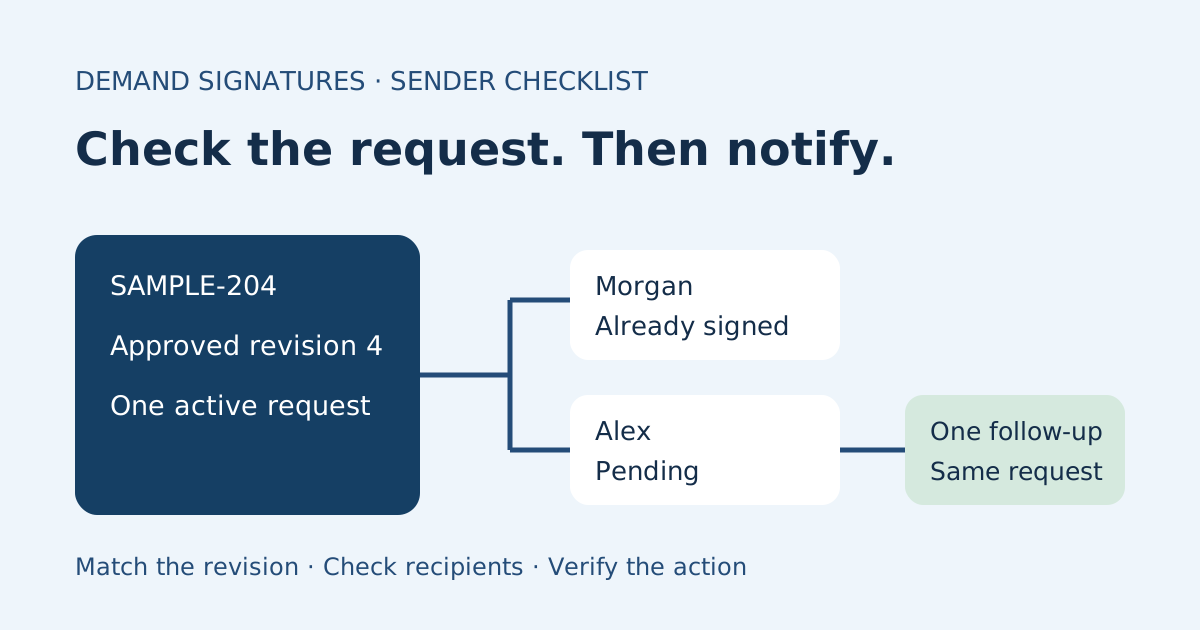
To resend a signature request without creating a duplicate, open the existing request and check its document revision, recipients and current status first. If the right person can still sign the right document, use the provider’s supported reminder or resend action on that request. Do not upload the PDF again simply because someone cannot find the invitation.
This guide is for a small team deciding whether to remind, resend or prepare a replacement. The action names and available controls vary by provider; the checklist does not assume every signing tool supports each option.
Reminder, resend or replacement?
Think about what you want to change before choosing a button.
| Action | Intended purpose | Check before acting |
|---|---|---|
| Personal reminder | Ask about an outstanding review or question | Is this person actually the next person who needs to act? |
| Provider reminder or resend | Notify a recipient about an existing request | Does this action keep the same request record, and which recipients receive it? |
| Recipient correction | Fix the intended destination or signer through supported controls | Is the problem an incorrect address, a different signer or a delivery issue? |
| Replacement request | Send a separately reviewed request when the original cannot appropriately continue | What happened to the earlier request, and can recipients still act on it? |
For a provider-specific example, Adobe Acrobat Sign’s reminder guide describes reminders for recipients currently expected to act on an agreement. Its agreement-management guide treats agreement management as a set of distinct actions. Check the documentation for your own service rather than assuming a similarly named button has identical behavior. These Adobe examples do not establish Demand Signatures feature support.
Run the status-first resend checklist
- Find the original request. Match its reference, client or project, document title and revision. Search for a second request before doing anything else, especially if a teammate has already followed up.
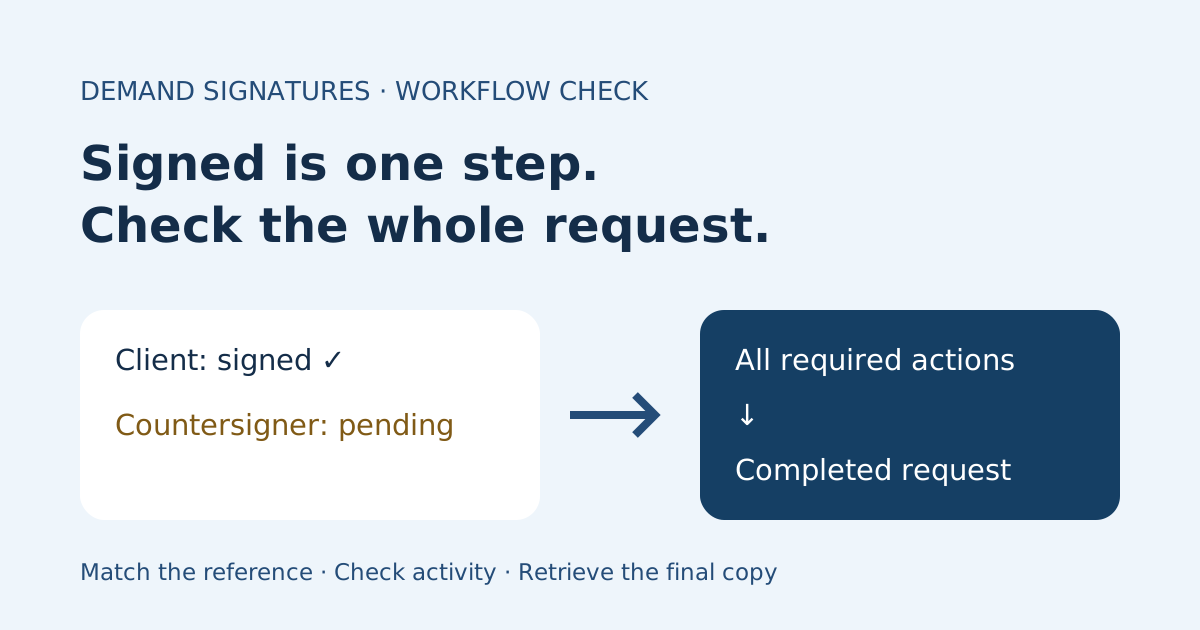
- Read each recipient’s status. An unfinished request may contain a completed signature. With ordered signing, a later recipient may still be waiting for an earlier person. Use the signed-versus-completed checklist if the recipient says they already signed.
- Confirm the destination. Ask the intended recipient to confirm the address through your usual contact channel. For an actual typo or wrong address, use the wrong-email correction checklist. Do not ask someone to forward their personal signing invitation to a replacement signer.
- Check whether the request is still actionable. A completed, declined, cancelled or expired request needs its own next-step decision. An expired email link and a request deadline are separate checks; see the expired-link guide.
- Review the available action. Read the confirmation dialog or current help documentation. Confirm the request reference, intended recipients and notification scope. If it is unclear whether the action creates a new request, stop and ask the provider before sending.
- Coordinate the follow-up. Check recent messages and scheduled reminders. Have one teammate perform the action and record when it happened. Recheck status immediately beforehand so you do not chase someone who has just finished.
- Verify the result. Return to the request record. Confirm whether a notification event appears, if the service exposes one, and whether the same request remains in use. A recorded notification is not proof that the person read it.
Worked example: one missing invitation, two recipients
A fictional agency sends Harbor’s website SOW, revision 4, under request SAMPLE-204. Morgan signs first; Alex’s countersignature remains outstanding. Alex asks, “Can you send that again?”
| Check | Example finding | Decision |
|---|---|---|
| Request identity | SAMPLE-204 contains the approved revision 4 | Keep that reference in the follow-up log |
| Recipient progress | Morgan has signed; Alex has not | Do not ask Morgan to sign again |
| Destination | Alex confirms the existing address is correct | Treat this as a missing invitation, not an address correction |
| Request status | Still active and waiting for Alex | Check the existing request’s supported notification action |
| Notification scope | Sender confirms the action addresses Alex on SAMPLE-204 | Use it once; record time and sender |
| Verification | Same request remains active; Alex’s completion is still pending | Set the next agreed check without uploading a second SOW |
The team’s log might read: “SAMPLE-204 / Harbor SOW r4 / Alex pending / notification sent November 3 at 10:15 / Casey owns follow-up.” Those are invented example details, not customer records or measured results.
If the sender instead discovers revision 4 has the wrong scope, another invitation will not fix it. Resolve the document question with its owner, establish how the earlier request should be handled using supported controls, and identify the approved replacement clearly. Do not describe an old request as cancelled until its record confirms that state.
If a duplicate already exists
Pause further reminders while you reconcile both records. List each request reference, revision, recipients, signature progress and current status. Do not assume the newest request is the correct one, or discard a record because another copy exists.
Have the document owner determine which reviewed version should proceed. Check the provider’s supported controls for the other request and preserve the relevant history. If either copy is completed or the copies contain conflicting signatures or terms, route the question to the person responsible for the agreement before asking for more signatures. This is an operational record check, not advice about the effect of either document.
Common questions
Does resend always keep the original signatures?
Do not infer that from the label alone. Confirm whether the action notifies recipients on the same request, changes that request or creates another one. Check its progress afterward rather than assuming prior actions carried over.
Should I email everyone a copy of the signing link?
Use the provider’s supported notification route for the intended recipient. In a separate email, identify the document and ask them to use their own invitation. Keep recipient-specific links out of group threads.
What if another reminder does not help?
Ask what is blocking review. The recipient may have a document question or a delivery problem. Use the reminder email examples for wording, then record the agreed next action instead of repeatedly creating new requests.
For a genuinely new document, open the Demand Signatures PDF upload workflow; sign-in is required. For an existing document, find its request record first.
Sources checked November 3, 2026: the two Adobe guides linked above. The decision table, checklist and worked example are original editorial guidance.
Comments
Questions and notes from readers. Every comment is reviewed before it appears.
Comments are unavailable right now. Please try again later.
Leave a comment