
PDF signature fields not working? A sender troubleshooting checklist
Identify missing PDF signature fields, file restrictions and recipient setup errors with a symptom table and a worked three-page agreement example.

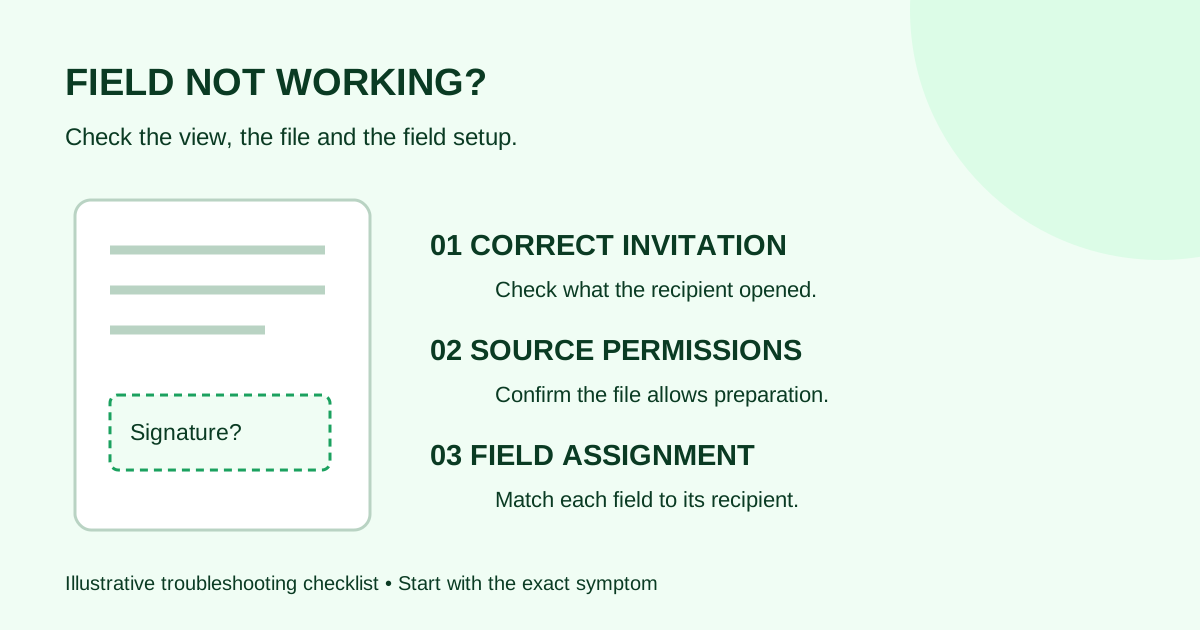
If a PDF signature field will not respond, first check which file or screen is open, whether a signing field exists, and whether the source PDF permits the action. A printed signature line, an interactive PDF form field and a field inside a signing request are different things. Repeatedly clicking the same blank will not tell you which one you have.
This checklist is for a small-team sender helping a client who says, “I can see the document, but I cannot sign.” It separates document preparation from recipient setup so you can investigate without sending several competing requests.
Start with the symptom
Ask the recipient for the document title, page number and exact error wording. Have them describe the screen before asking for a screenshot; if a screenshot is necessary, leave out private document content and signing links.
| What the recipient sees | First check | Who takes the next step |
|---|---|---|
| A signature line in an email attachment, but no signing controls | Is this the attached reference copy rather than the active invitation? | Sender identifies the current request; recipient opens their own invitation |
| A blank line that cannot be selected in a PDF viewer | Is the line just part of the page artwork? | Sender inspects the prepared document for an actual signing field |
| A message that filling or editing is restricted | Do the source file's permissions allow the intended action? | Document owner supplies an approved file suitable for preparation |
| Other fields work, but one does not | Does that field belong to this recipient and use the intended field type? | Sender checks the field map |
| The field appears on the wrong page or over unrelated text | Was the source PDF revised after the field layout was prepared? | Sender compares the current pages with the saved layout |
| The recipient has entered a signature but cannot finish | Is there another required field or a specific validation message? | Recipient reports the message; sender checks the corresponding field settings |
These are investigation paths, not a diagnosis of every signing service. Labels and correction options vary by provider and request status.
1. Separate a visible blank from an interactive field
A PDF can show “Signature” and an underline without containing any interactive form control. Adobe's form troubleshooting guidance distinguishes non-interactive forms from forms with restricted security settings.
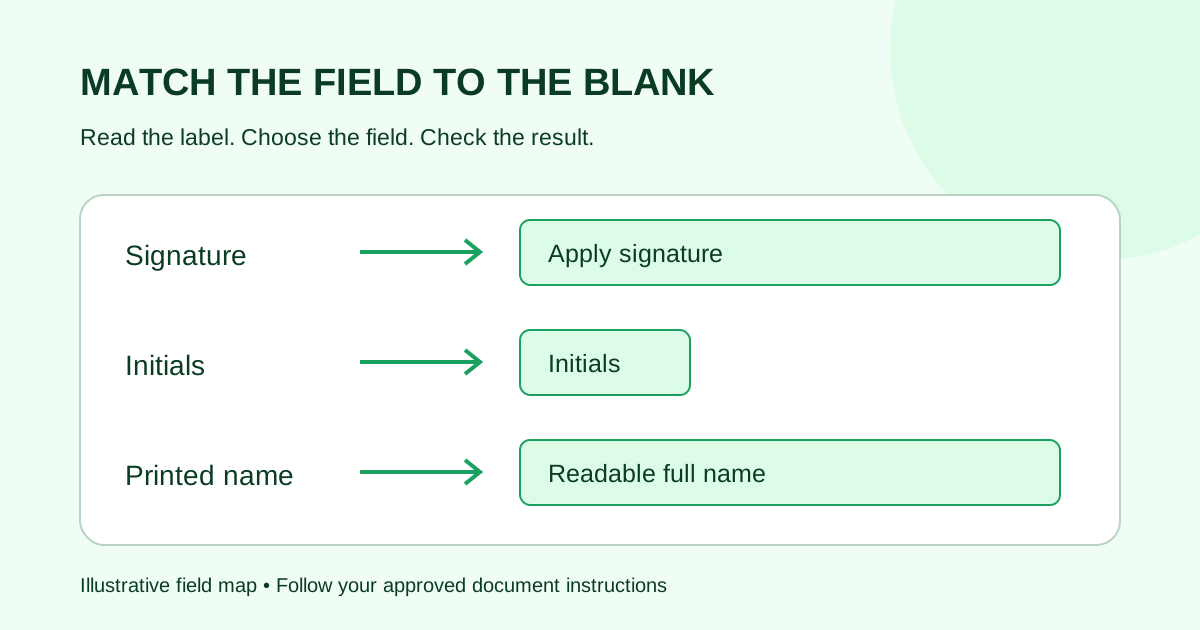
For a request you are preparing, inspect the signing editor itself. Confirm that a field sits on the intended blank. Then check its type and recipient, using the signature, initials and name field worksheet. Do not assume that text recognition or a visible underline has created a usable signing field.
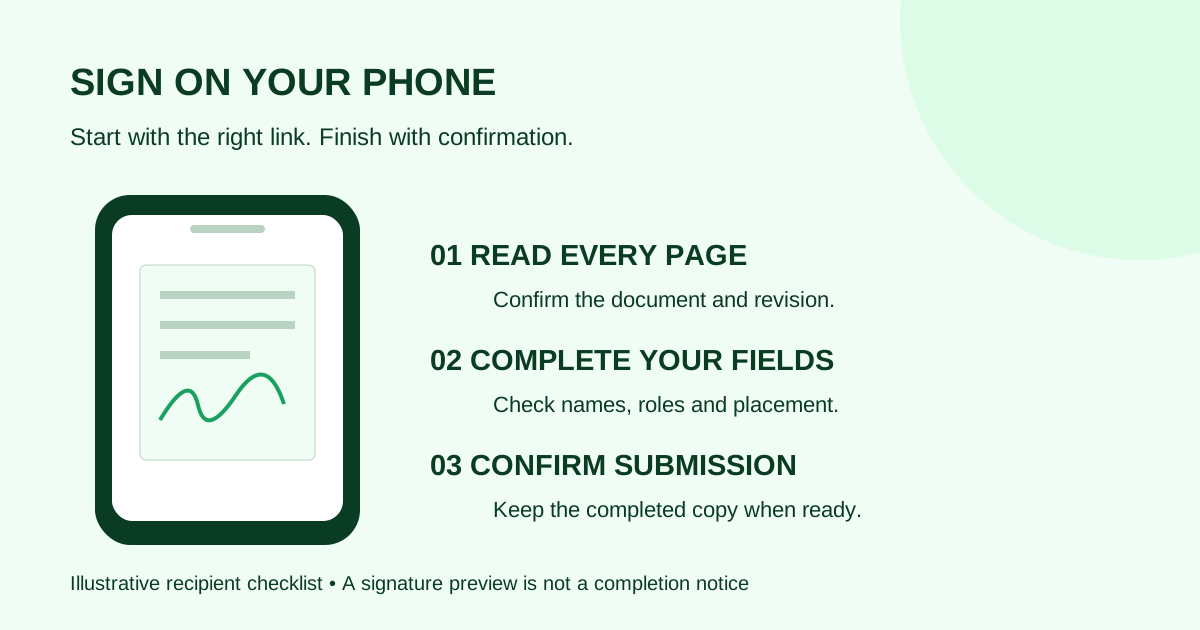
If the client opened a downloaded reference copy, first direct them to their own current invitation. Avoid forwarding another person's invitation to “test” access. The phone signing checklist explains the request-versus-attachment distinction from the recipient's perspective.
2. Check source-file restrictions with the document owner
In Acrobat, Adobe directs users to Document properties → Security and the permission for filling form fields. If filling is not allowed, its guidance is to contact the form creator for an unrestricted version. Menu access differs between Windows and macOS; use the linked instructions for your platform.
Record the exact restriction before asking for a replacement. A useful internal message is:
The approved revision opens, but its permissions do not allow form filling. Please provide an approved source suitable for signature preparation, keeping the same document content and revision identifier.
Keep the original file. Do not treat printing, flattening or removing protection as a routine repair. If the file is already a completed signed record, pause preparation and ask the document owner which source should be used for the new request.
3. Check the field configuration
If the document opens and some fields work, inspect the specific failing field. Check its recipient, type, required setting and any input-format rule available in your provider. Adobe's custom field documentation, for example, describes recipient selection and controls for text format, character limits and required fields. Those are Adobe controls, not a promise that every service has the same options.
Use the recipient field map to compare the intended signer with the assigned signer. Do not remove a required field simply to get past an error; first establish what the approved document asks that person to provide.
Worked example: a three-page agency agreement
Suppose an agency sends revision 4 of a three-page agreement. The client reports that the signature line on page 3 does nothing. Use a short investigation log:
| Check | Example finding | Next action |
|---|---|---|
| Identify the view | Client opened the PDF attached to an earlier email | Ask them to open their own current invitation |
| Inspect the prepared request | Client signature field exists on page 3 | Keep that field; do not create a duplicate |
| Compare field ownership | The printed-name field belongs to the agency signer | Sender records the assignment error and checks supported correction options |
| Check the revision | Both the approved source and prepared request say revision 4 | Preserve that identifier through the correction |
| Verify before another client send | A synthetic practice request gives each recipient the intended fields | Confirm the corrected layout before using a client document |
This is an illustrative scenario, not a product incident. The first symptom came from the wrong view, while the setup inspection uncovered a separate assignment error. That is why “try again” is a poor substitute for checking the file and field map.
Before sending a corrected request
Check the current request status and your provider's documented correction options. If a replacement is needed, make clear which invitation is current and handle the earlier request through the provider's supported workflow. Do not leave the client guessing between two links.
For a repeatable check, use a harmless sample document and the two-recipient practice script. Record whether the recipient can open the invitation, complete their assigned fields and reach a confirmation screen. Test the issue you found before asking the client to try again.
Common questions
Does a scanned signature line become a field automatically?
Do not assume it does. Inspect the prepared request for an actual field and check its assignment. For unreadable or sideways pages, start with the scanned-PDF preparation checklist.
Should I send a new invitation immediately?
First identify the current request and its status. An attachment-viewing problem may only need the correct invitation, while a preparation error needs a sender-side check.
What should I include in a support report?
Include the document revision, affected page, field label, browser or app, exact error text and the checks already tried. Share sensitive files only through the provider's approved support process; do not paste signing links into public comments.
Sources checked October 12, 2026: Adobe's form troubleshooting and custom-field documentation linked above. The tables and agency example are editorial checklists, not vendor guarantees.
When the approved PDF is ready, open Demand Signatures' document upload to begin preparation. Sign-in is required.
Comments
Questions and notes from readers. Every comment is reviewed before it appears.
Comments are unavailable right now. Please try again later.
Leave a comment