
Reusable signature template checklist: what to check before every send
Check reusable signing templates for old client details, shifted fields and incorrect recipients, with a worked three-page service-agreement example.

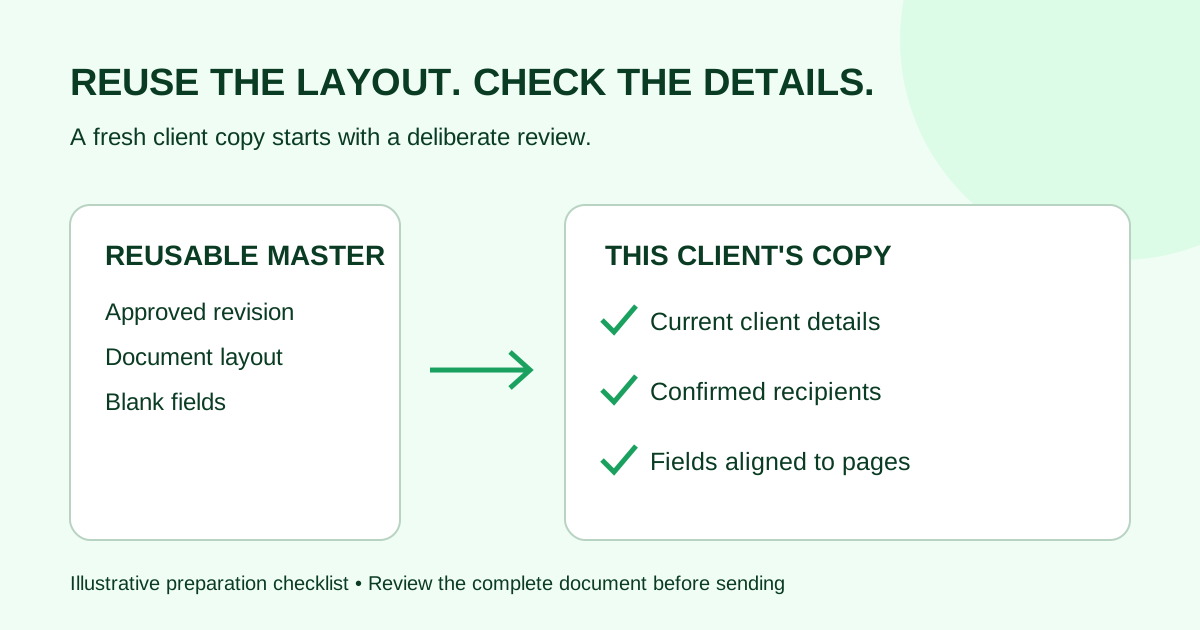
Before reusing an electronic signature template, check the approved document version, remove old client data, confirm this request's recipients, and inspect every field against the current pages. A familiar layout is a starting point, not proof that a request is ready to send.
This checklist is for small teams sending repeat service agreements, onboarding forms or engagement letters. It covers preparation of an already-approved document; it does not decide what terms or signatures your agreement needs.
Know what your template actually reuses
“Template” can describe different things: a source document with placeholders, a saved document in a signing tool, or a reusable arrangement of fields. Check which parts your tool carries into the new request before you enter client details.
For example, Adobe's library-template guide distinguishes a saved document from a reusable form-field layer applied to another document with the same layout. Those are Adobe's template options; other providers may organize reuse differently.
The practical question is: what came from the reusable master, and what must be supplied for this particular client? Inspect the PDF text as well as the signing fields. Clearing an editable field does not establish that an old company name printed in the PDF is gone.
The reusable signature template checklist
| Check | What to inspect before sending | Ready condition |
|---|---|---|
| Approved version | Source filename, revision and document owner's instructions | The selected master matches the approved version |
| Client details | Names, organization, addresses and project references throughout the pages | Every client-specific value belongs to this request |
| Commercial details | Scope, fees, dates and attached schedules | Values match the approved client document; uncertainties go back to its owner |
| Recipients | Actual names, email addresses and their roles | Each recipient is confirmed for this request |
| Field ownership | Signature, initials, name and date fields | Each field belongs to the intended recipient |
| Field placement | Every page after text or layout changes | Fields sit beside the correct labels without covering content |
| Request settings | Signing order, message, deadline and reminders where available | Settings match the current handoff, not an earlier send |
| Final preview | Complete page set and any remaining placeholders | No missing pages, unresolved placeholders or previous-client details |
Use an explicit placeholder convention in the unsigned source, such as [CLIENT NAME] and [PROJECT START DATE]. Before export, search for the brackets and the previous client's name, then read the whole output. Search alone can miss text embedded in images or details you did not think to search for.
Keep reusable source material separate from completed signed records. Do not use an old signed client file as the new blank master. Keep the original completed record intact in your signed-document filing system.
Worked example: a service agreement gains a page
A fictional agency reuses its approved service-agreement layout for a new client. The previous version had two pages. The new approved scope is longer, so the signature block moves to page three.
The sender changes the client name on page one and applies the familiar field layout. A quick look at the first page would miss three problems:
| What carried over | What the sender finds | Correction before sending |
|---|---|---|
| Footer text | The previous client's project code remains on pages two and three | Correct the unsigned source and export the reviewed PDF again |
| Field positions | Signature fields still sit on page two, now over the scope text | Reposition fields against the new page-three signature block |
| Recipient setup | The client role is associated with the previous request's contact | Confirm the new recipient and inspect every client-owned field |
These are illustrative failure cases to check for, not a claim that every signing tool copies recipients or behaves identically when pages change.
The sender's final check is concrete: three approved pages, the new project code throughout, the correct client recipient, and each signature field aligned with its labeled blank on page three. The document owner resolves any uncertainty about the scope before the request goes out.
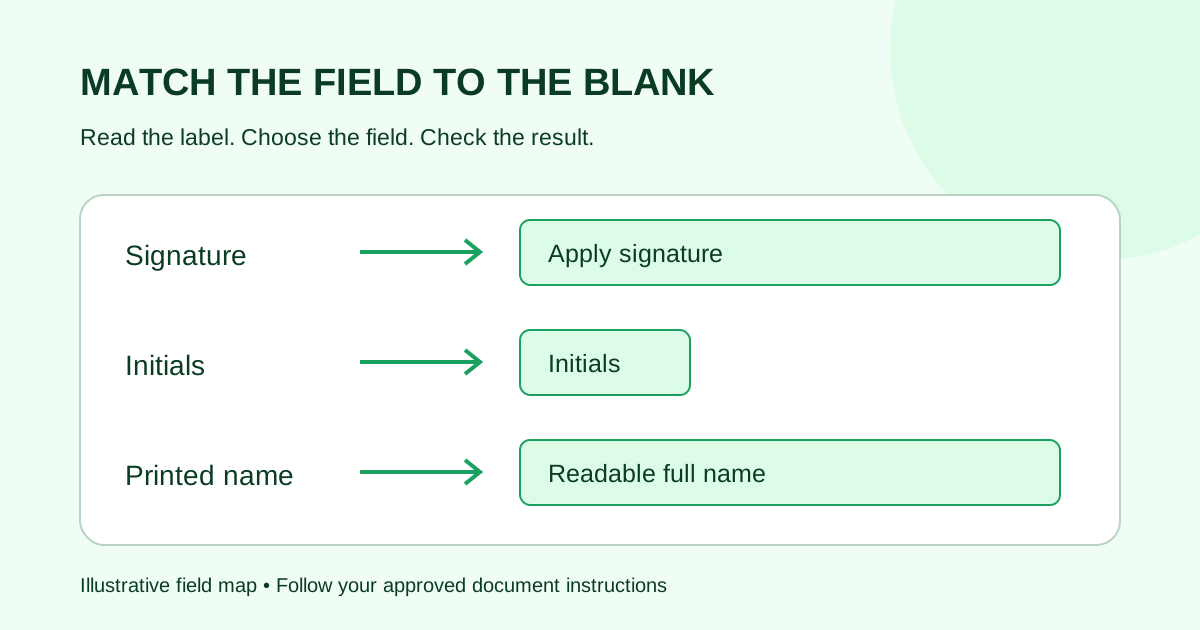
For a detailed recipient worksheet, use the field-assignment guide. If the blank itself is ambiguous, the signature, initials and name field comparison helps separate field type from recipient ownership.
Review the master separately from each client copy
Give the reusable master a recognizable name and revision, such as Service-agreement-master-v3. Keep a short note of its owner, approved source revision and last layout check. This is an organizational suggestion, not a feature that every signing tool provides automatically.
Make client-specific edits in the request or unsigned client copy using your tool's supported workflow. Before saving changes, check whether the action updates just that request or the shared master. A change intended for one client should not silently become the starting point for the next client.
When an approved master changes, inspect all affected pages and fields. Adding text near the beginning can move a signature block later in the document. Recheck more than the paragraph you edited.
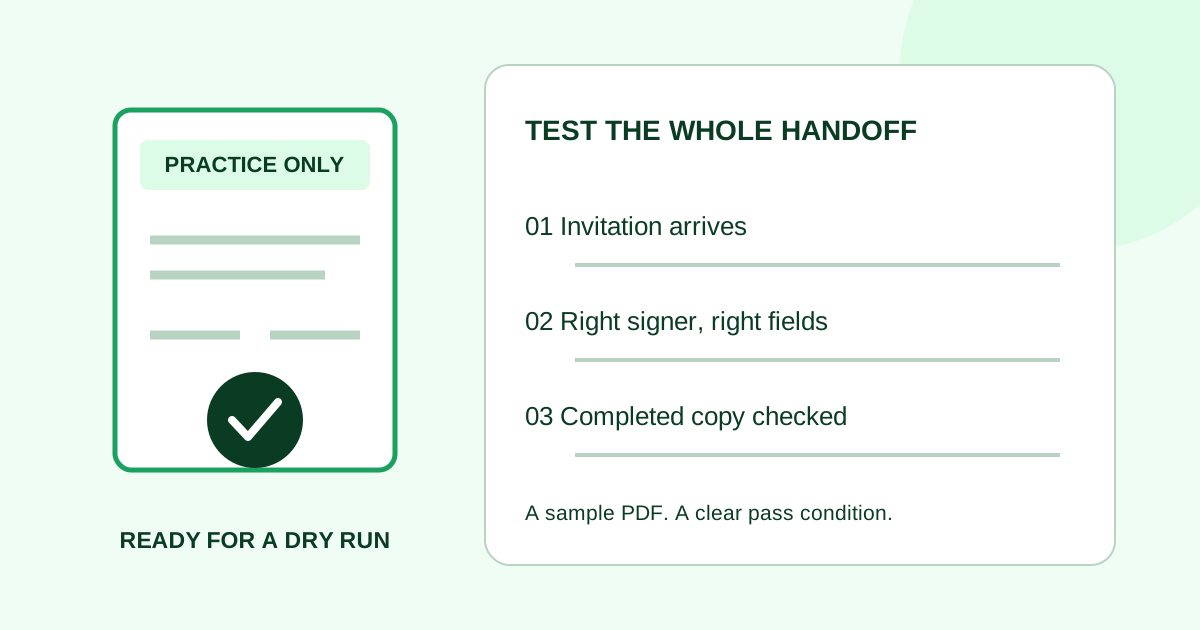
Use a synthetic practice run when the layout or recipient arrangement changes or the reuse behavior is unclear. Use fictional content and internal test recipients, then inspect the completed sample for missing, clipped or misplaced entries.
Common questions before reusing a template
Does changing the client name make a template ready?
No. Review every client-specific value, recipient, field and request setting. The visible client name is only one item in the checklist.
Can I apply the same field layout to a revised PDF?
Inspect the revised pages first. A field layer is useful only when its positions still match the intended blanks. If content has moved, adjust the fields and check the full document before sending.
Should I change the master for a one-off client request?
Confirm the intended scope of the change with the document owner. Keep one-off details in the client copy where your workflow supports it, and update the reusable master only when the shared starting document is meant to change.
Prepare the next request in Demand Signatures
Demand Signatures' features page describes reusable document templates and assigning fields per recipient. Use the checklist above to review the specific document and recipients each time you reuse a layout.
Next step: upload your approved PDF to prepare a request. Sign-in is required.
Sources checked October 9, 2026: Adobe Acrobat Sign library templates and Demand Signatures features. The checklist, naming suggestion and agency example are original editorial guidance.
Comments
Questions and notes from readers. Every comment is reviewed before it appears.
Comments are unavailable right now. Please try again later.
Leave a comment