
Signature vs initials vs name fields: prepare the right PDF blanks
Choose signature, initials, printed-name and date fields for an approved PDF, with a five-entry worksheet and checks for common setup mistakes.

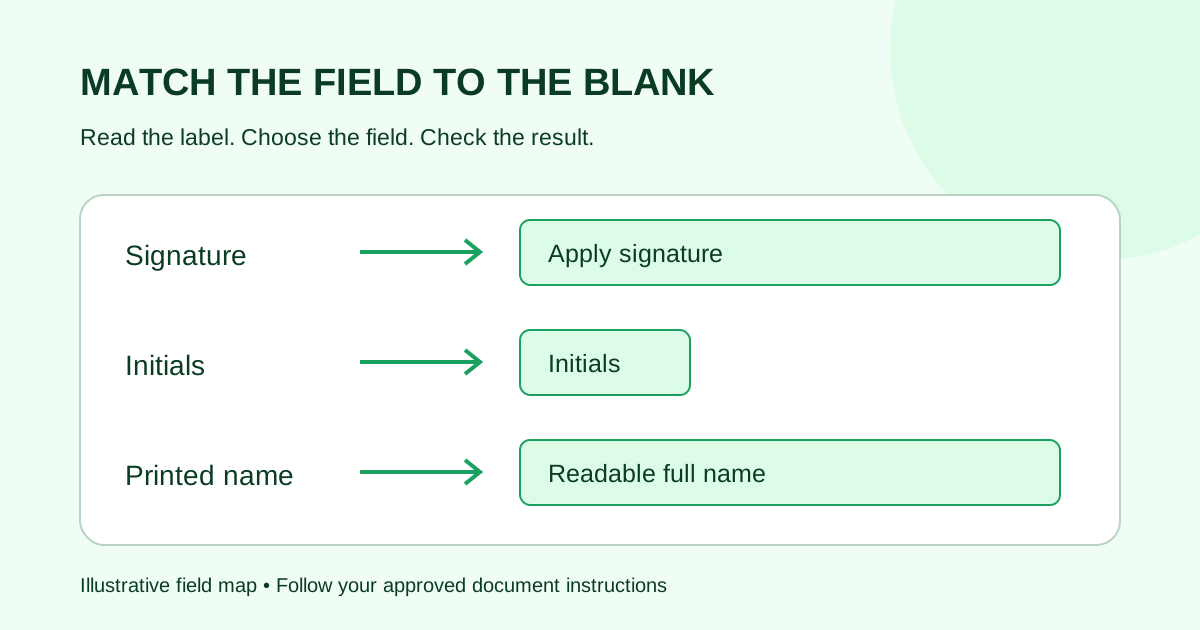
Use a signature field for a signature line, an initials field for an initials blank, and a name or text field for a printed-name blank. Start with the labels and completion instructions in the approved PDF. A box that looks right on the page can still ask the recipient for the wrong kind of input.
This guide is for the person preparing an already-approved document for electronic signing. It explains field setup, not which signatures or initials a particular agreement legally needs. If a blank's purpose is unclear, resolve it with the document owner before sending.
Match the field to the requested entry
| Label on the approved PDF | Field to look for | Preparation check |
|---|---|---|
| Signature | Signature | The recipient is prompted to apply a signature in this location |
| Initials | Initials | The field requests initials, rather than repeating the full signature |
| Printed name | Name or text, depending on the tool | The completed value is readable and belongs to the intended person |
| Job title | Text or a dedicated title field | The box collects a role, not the person's signature or name |
| Date signed | Signing-date field, if supported | Confirm how and when the tool supplies the date |
| Project start date | Follow the approved document instructions | Do not substitute the signing date for an agreed project date |
Field names and behavior vary by provider. Adobe's field-type reference, for example, distinguishes signature and initials fields and describes a signer-name field populated from the name entered during signing. That is Adobe behavior; do not assume every tool fills a name field the same way.
Signature, initials and printed name are separate setup choices
A signature field opens the signing action provided by the tool. A printed-name field collects or displays a readable name. Even when a recipient types their name to create a signature, the signature field and a separate printed-name field still have different jobs in the document layout.
An initials field belongs at a location that calls for initials. Do not replace a full signature field with initials just because the blank is small. Resize or reposition the appropriate field, or return an unsuitable layout to the document owner.
Likewise, do not add initials to every page by habit. Prepare the approved document as instructed. Extra fields create extra recipient actions and can make it harder to understand what the sender actually requested.
Worked example: prepare a two-page service agreement
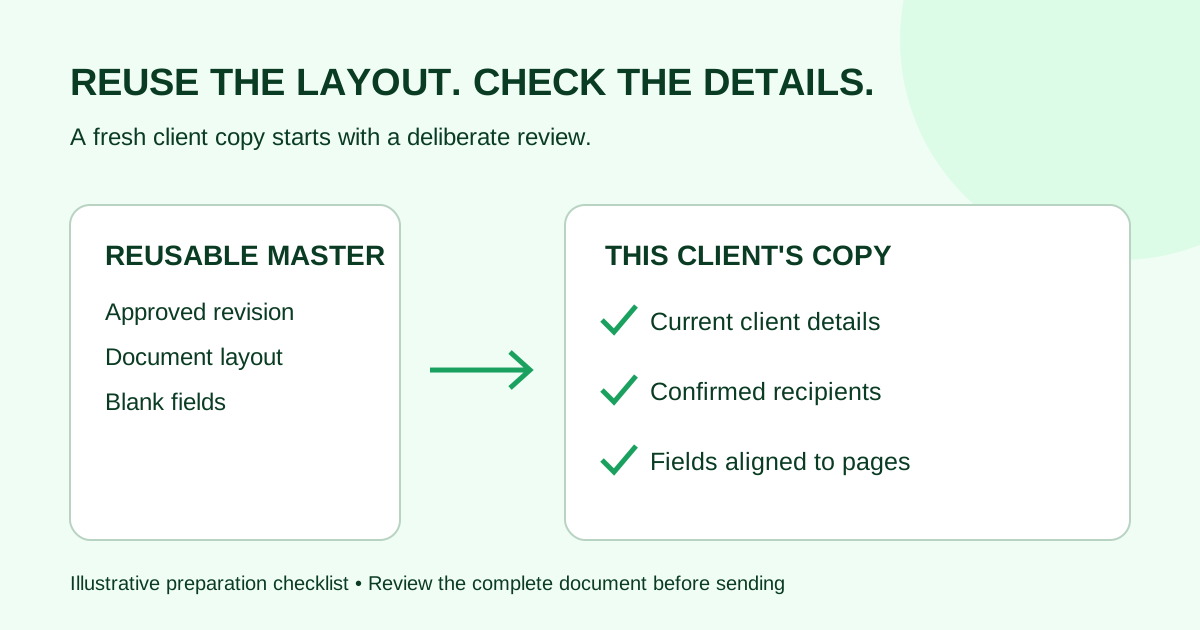
Suppose a fictional service firm's approved PDF contains a scope schedule on page one and a client signature block on page two. Its completion instructions call for client initials beside the schedule, followed by a signature, printed name, title and signing date on the final page.
Use this preparation worksheet before opening the signing editor:
| Location | Expected completed entry | Setup decision |
|---|---|---|
| Page 1, schedule initials blank | Client representative's initials | Initials field |
| Page 2, signature line | Client representative's signature | Signature field |
| Page 2, printed-name line | Client representative's full name | Name field after checking its behavior, or an appropriately labeled text field |
| Page 2, title line | Client representative's job title | Title or text field |
| Page 2, date-signed line | Date of that person's signing | Verify the signing-date control before using it |
The schedule already states the approved project start date. Leave that date in the document text; it is not another blank for the signing tool to complete.
This example has five recipient entries and one fixed project date. That count provides a simple review target. If the editor shows six signer fields, find the extra field before sending. If it shows four, compare the missing location with the worksheet. The count is an editorial example, not a rule for other agreements.
For a document with more than one signer, add a recipient column and use the field-assignment guide. Choosing the correct field type does not establish that the correct person owns it.
Check behavior as well as placement
- Read the printed label. Keep it visible beside the field. A box over the word “Initials” can hide the very instruction the recipient needs.
- Inspect the selected field type. Do not judge a field only by its outline, color or size. Recheck copied fields individually.
- Check the field's recipient. Confirm that the name, initials and signature in one person's block all belong to that person.
- Review required-field settings where available. Match the approved completion instructions. Adobe's field-customization guide documents a required-field setting; exact controls and defaults differ among products.
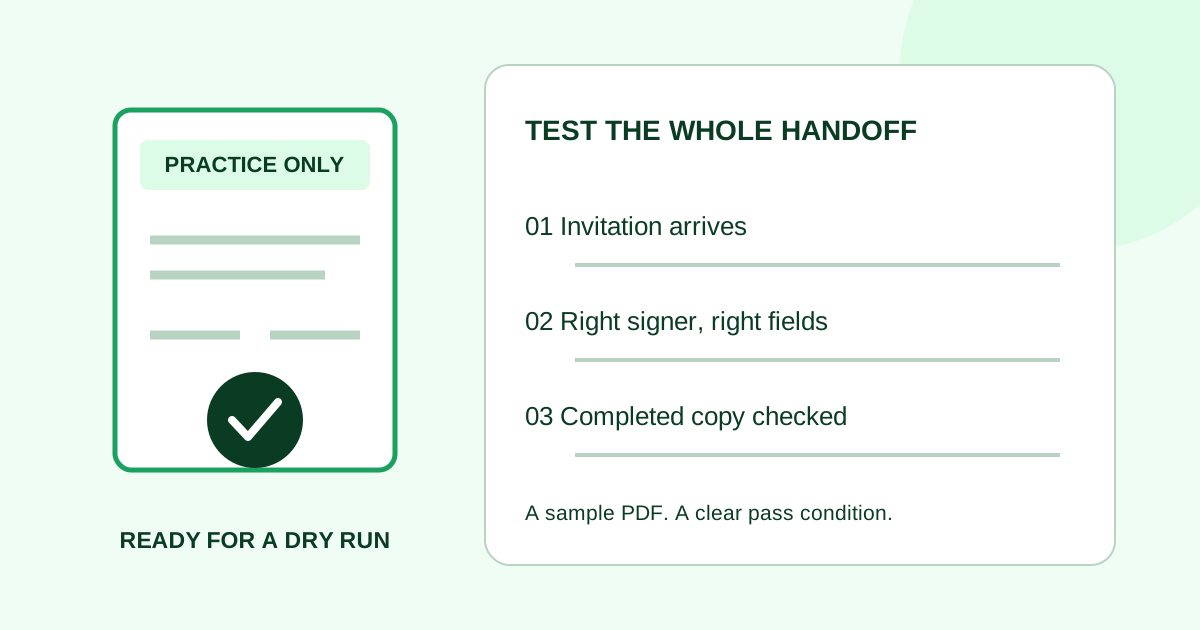
- Try uncertain behavior with a harmless sample. If you do not know whether a name is typed, copied from a profile or supplied during signing, use a synthetic document and internal test recipients before the client send.
- Inspect the completed sample. Look for clipped names, oversized initials, overlapping text and dates with an unexpected meaning or format.
Our sample-PDF test script covers the full invitation-to-download check. For this field-selection check, the useful evidence is the completed sample beside your worksheet: each expected entry should be present, readable and in its intended location.
Three mistakes to catch before sending
A text box on the signature line. Inspect the type and replace it with the intended signature field before sending. A similar-looking rectangle is not evidence that the signing action is configured.
The company name in the printed-name blank. Confirm whose name the document requests. Keep the person's name, organization and role in their respective labeled locations. Ask the document owner to clarify an ambiguous block.
A signing date where the project date belongs. Compare the label with the approved text. The date someone completes their signature and the planned start of the work can differ. Do not make an unclear date field required and leave the recipient to guess.
If a request has already been sent, check its status and your provider's correction options before taking action. This preparation worksheet is not an instruction to overwrite a completed signed file.
Prepare your PDF in Demand Signatures
Demand Signatures' features page describes placing signature, date, initials and text fields and assigning fields per recipient. Use the worksheet to decide what belongs in each blank, then inspect the available controls in your document.
Next step: upload your approved PDF to prepare the request. Sign-in is required.
Sources checked October 8, 2026: Adobe Acrobat Sign field types, Adobe Acrobat field customization, and Demand Signatures features. The service-agreement worksheet and review procedure are original editorial examples.
Comments
Questions and notes from readers. Every comment is reviewed before it appears.
Comments are unavailable right now. Please try again later.
Leave a comment