
How to send an agency statement of work for signature
A practical SOW handoff: freeze the scope, confirm the client signer, place fields, choose signing order and keep the completed copy.


A statement of work often gets stuck after the negotiation is finished: the client contact is not the signer, the attachment is an older revision, or someone thinks signing also confirms delivery. Fix that handoff before adding signature fields.
This is an operational checklist for an agency with an already-reviewed SOW. It does not draft contract terms or determine whether an agreement is enforceable. Have the appropriate adviser review the agreement and any special signing requirements.
Still preparing your scope under an existing signed services agreement? Use the statement of work template as a starting point, then have the completed draft reviewed before using this signing checklist. The template depends on that parent agreement; it is not a standalone services contract.
Freeze one version
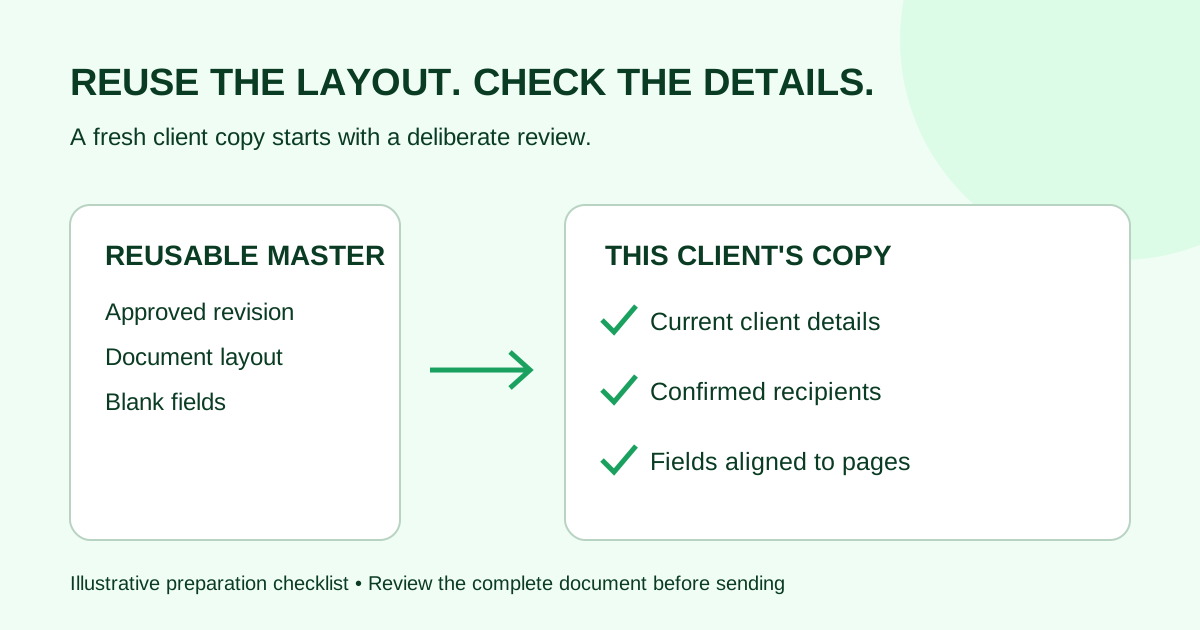
Export the agreed document to PDF and open the exported file. Check the scope, fee, dates and every referenced attachment. Remove tracked changes in the source document before exporting; do not assume the recipient will know which comments are still open.
Give the file a useful name, such as “Harbor website SOW — revision 3 — 2026-09-27.” Harbor is a fictional example. If somebody requests a substantive change after this point, make a new revision and explicitly retire the old request through your normal process.
Do not leave two requests circulating with the same title and different fees.
If the approved source is a scan, use the scanned-PDF preparation checklist before uploading. Save the correct orientation and check that scope tables, attachment labels and signature blocks remain readable on a phone.
Confirm who signs and when
Ask the client contact for the intended signer's name, email and role. A project coordinator may arrange the work without being the person who can approve it. Confirm authority through your own process; an email address alone does not establish it.
Decide whether the client signs before your agency representative, or whether both may sign independently. Use the signing-order checklist if that decision is unclear. Resolve internal review before sending; adding an internal reviewer as a signer changes what you are asking them to do.
Prepare the request
In Demand Signatures, start from the document upload surface:
- Upload the approved PDF and give the request a recognizable title.
- Add the intended signers, checking the addresses against your confirmed list.
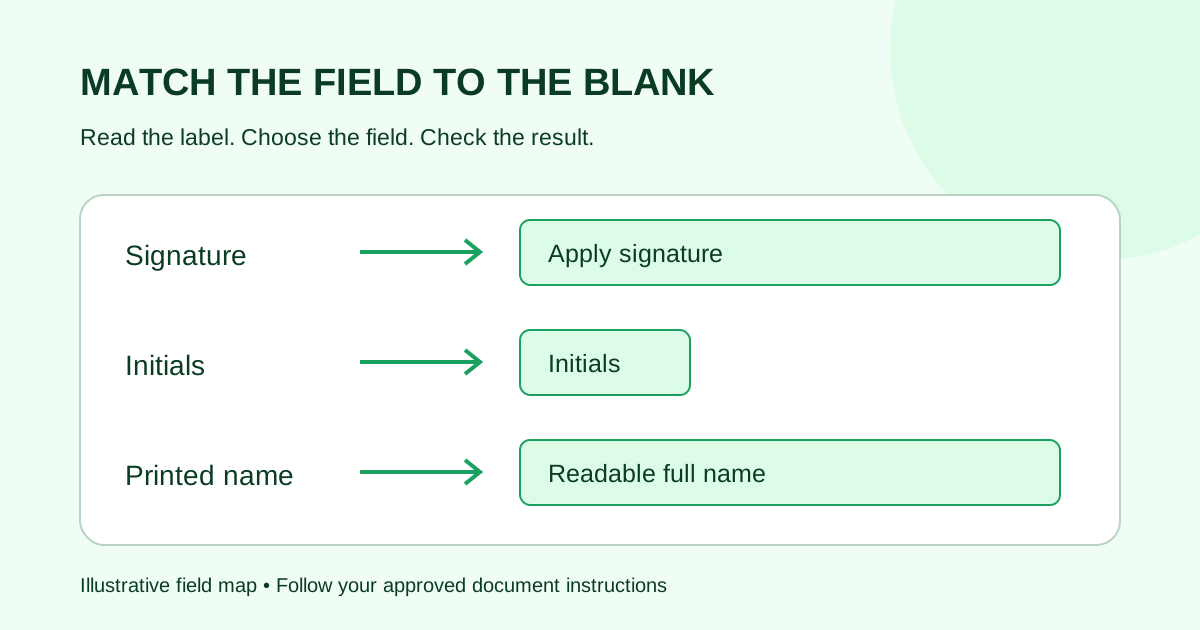
- Place each signature and date field on the correct person's block. Use the two-signer field map to check recipient ownership; a field's position alone does not identify who should complete it.
- Choose sequential or parallel signing to match the agreed order.
- Review the document and recipients before sending.
Check the entire file, not just the last page. A signature block on page seven cannot fix an incorrect project amount on page two. Use a harmless internal sample to learn the product before sending a client agreement.
Give the recipient enough context
Adapt this message to your own communication process:
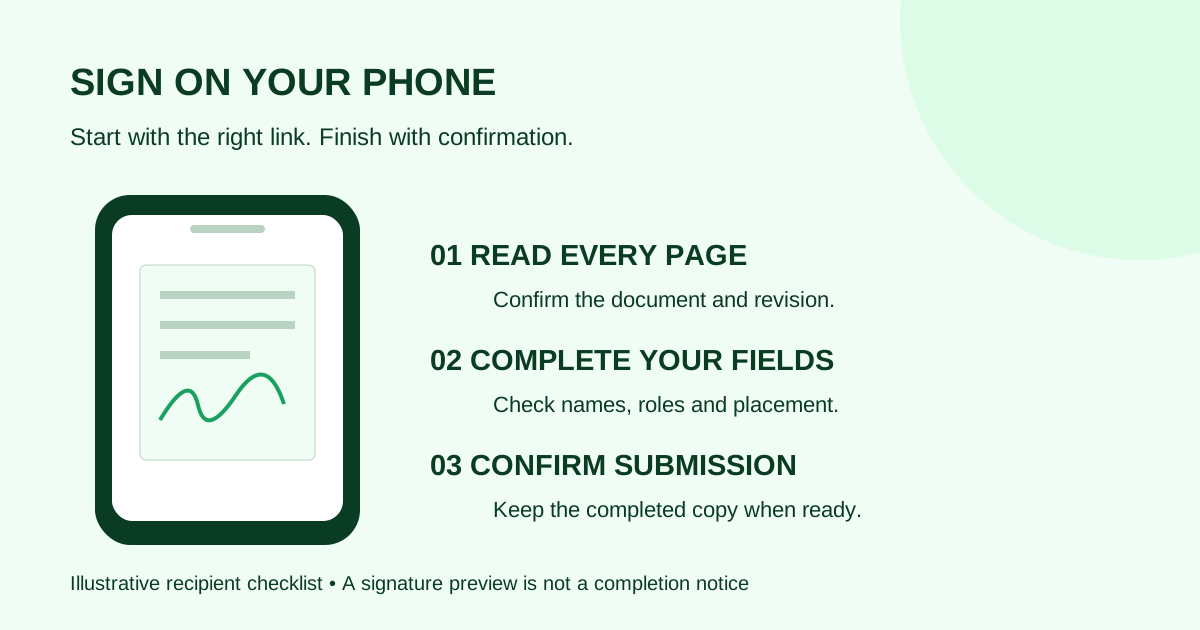
This is revision 3 of the Harbor website SOW, reflecting the scope and fee we agreed on 27 September. Please review the complete PDF before signing. If anything differs from your understanding, reply before signing so we can issue a corrected version. Our agency representative will countersign after you.
Do not add a deadline simply to create urgency. If a real scheduling deadline exists, explain it.
For a subject line or a separate heads-up to the client, adapt the signature request email templates. Keep the same document title and revision in each message so the recipient can match the email to the request.
Close the handoff
After completion, keep the final PDF and its completion certificate with the project record. Record the revision and date in the place your delivery team uses. Tell the project owner which signed scope to work from. Track deliverable acceptance separately through the procedure agreed for that project.
Next step: open the PDF upload workflow with your approved SOW. You will be asked to sign in if you are not already signed in.
Comments
Questions and notes from readers. Every comment is reviewed before it appears.
Comments are unavailable right now. Please try again later.
Leave a comment