
How do I edit a saved template?
Open Edit from a saved template. Save changes applies the title and description; field moves and deletions save immediately.
Updated
Open a saved template's Edit option to change it. Save changes updates the title and description on the existing template.
Moving or deleting a field saves that change immediately. Leaving without clicking Save changes does not undo those field changes.
Steps#
- Open Templates and find the saved template you want to edit.
- Open its three-dot menu and select Edit.
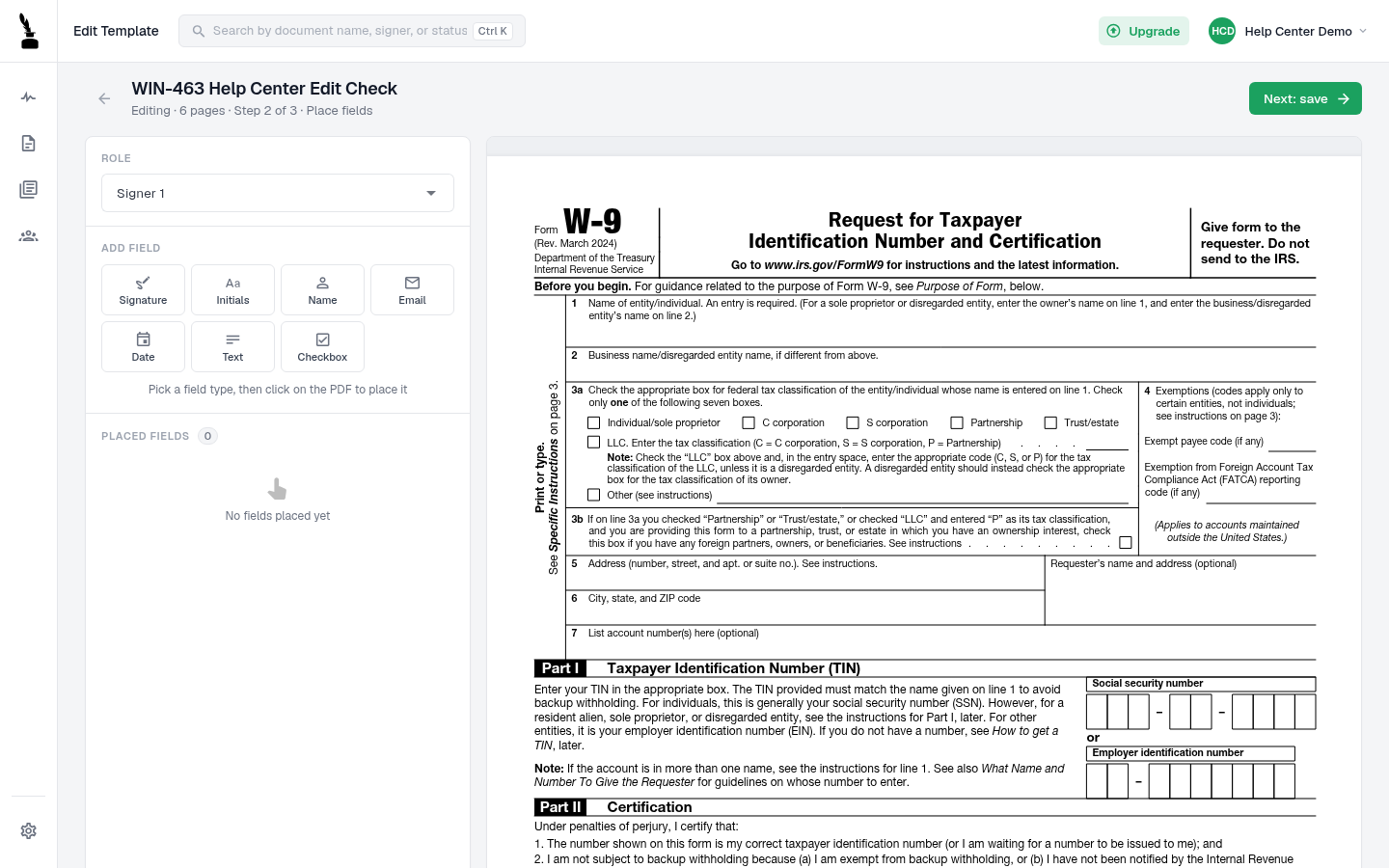
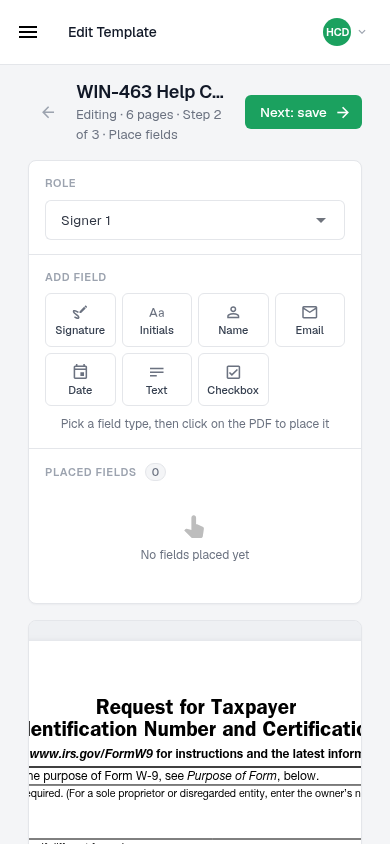
- Check that the saved title, PDF, roles and any field placements have loaded before making changes.
- Select Next: save. Update the title or description as needed, then select Save changes to save those details.
- If you move or delete a field, treat that change as saved immediately. Do not use leaving the page as a way to cancel it.
- Return to Templates and reopen the same template to check your saved changes.
Screenshots#
If the saved content does not load#
Stop editing and submit a support request with the template title and what you see. Do not save an empty form as a workaround.